User Management
In User Management you decide who in your company works with Dedomenon and which pages each user may open.
Open Settings → User Management. The menu item is only visible to administrators and requires the User Management permission.
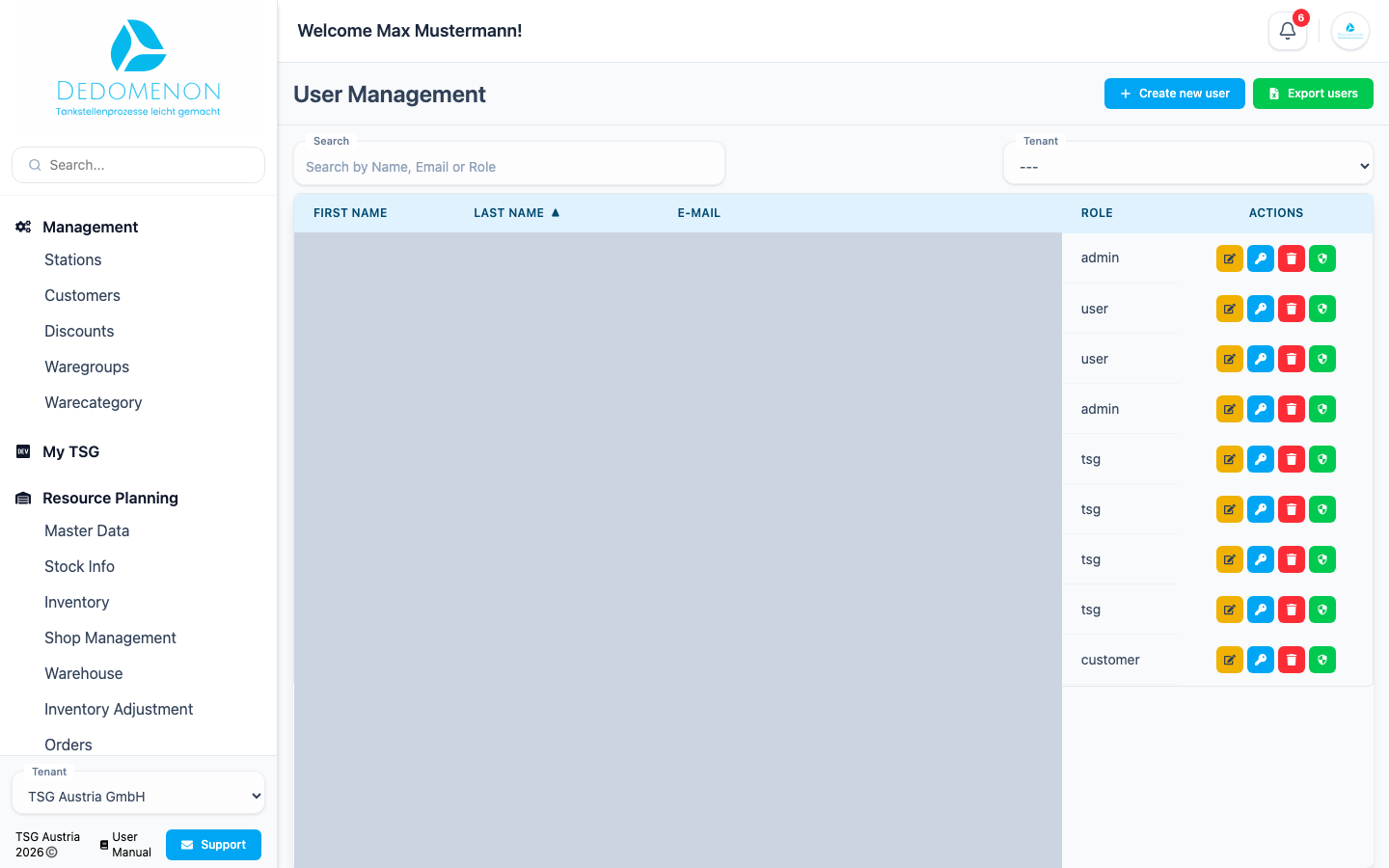
The table shows First Name, Last Name, e-Mail and Role of all users. Clicking a column heading sorts the table by that column, a second click reverses the order. With Search you find users by name, email address or role.
User roles
| Role | Meaning |
|---|---|
| user | Normal user. Can only open the pages they have permissions for |
| admin | Administrator. Can additionally receive settings such as Tenant and User Management |
New users always get the role user. If a user should become an administrator, contact support.
Creating a user
- Click Create new user.
- Enter First Name, Last Name and e-Mail. The field below contains the identifier of your tenant and is already filled in.
- Click Save.
The new user receives an email with a password and the link to Dedomenon. At first they have no permissions: assign permissions to them afterwards, otherwise they only see the overview after signing in.
Ask new users to change the password they were sent in their profile after their first sign-in.
Editing a user
- Click the pencil icon next to the user.
- In the Edit user dialog, change First Name, Last Name or e-Mail.
- Click Save.
Resetting a password
If a user has forgotten their password, reset it:
- Click the key icon next to the user.
- Confirm the prompt Reset password? with Reset.
Dedomenon assigns a new password and sends it to the user by email. Users can also reset their password themselves using Forgot your password? on the sign-in page.
Deleting a user
- Click the trash icon next to the user.
- Confirm the prompt Delete user? with Delete.
The user is deleted permanently and can no longer sign in. This cannot be undone.
Assigning permissions
With permissions you define which pages a user sees in the sidebar and may open.
- Click the green shield icon next to the user.
- In the Edit Permissions dialog, tick the pages you want. With Select All you select all permissions of a group at once. At the bottom you see how many permissions are selected.
- Click Save.
The changes apply as soon as the user reloads Dedomenon or signs in again.
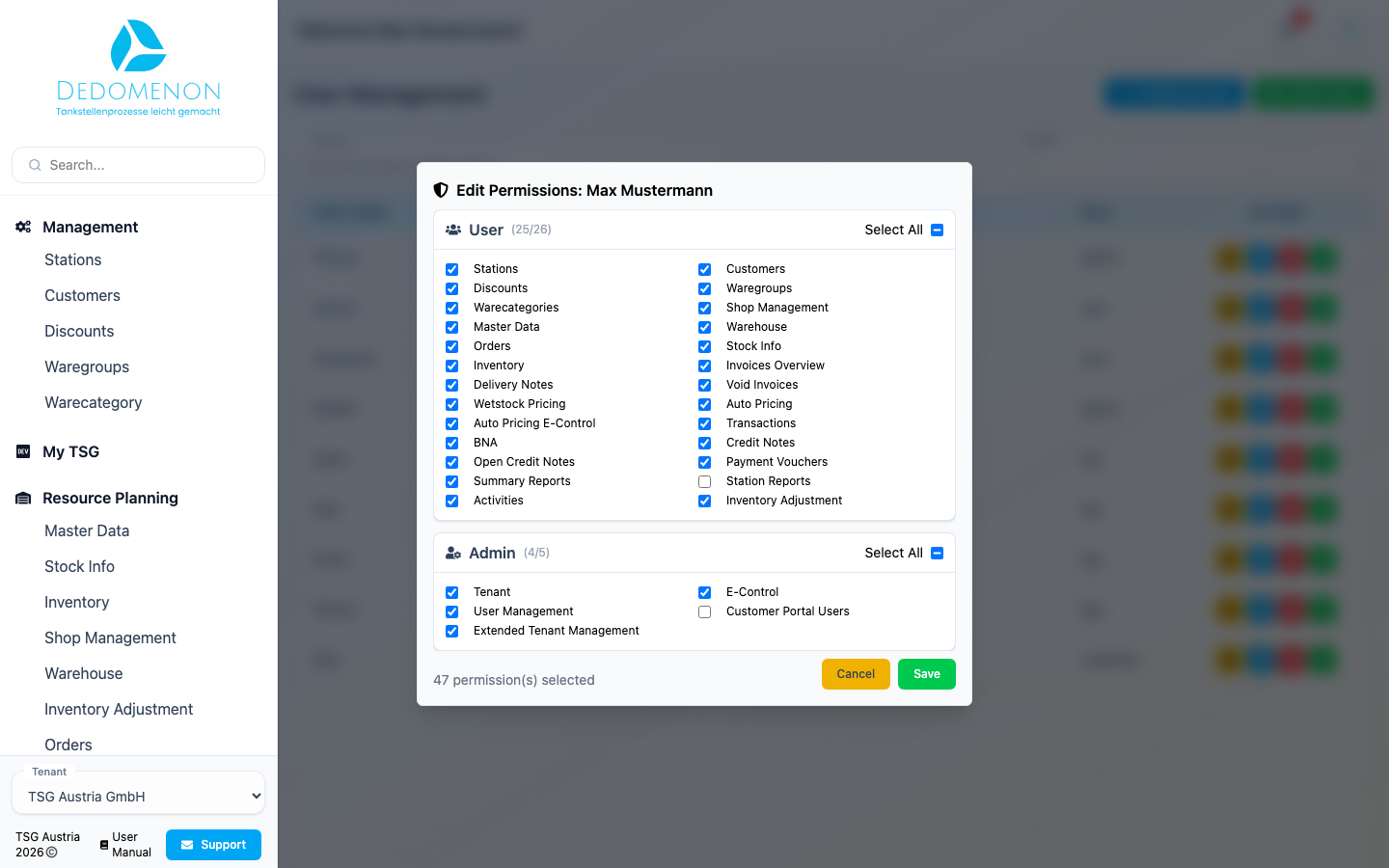
The permissions are arranged in groups. Users with the role user only see the User group, administrators also see the Admin group. The names are in English in all languages:
| Permission | Page in Dedomenon |
|---|---|
| Stations | Management → Stations |
| Customers | Management → Customers with Customer Cards |
| Discounts | Management → Discounts |
| Waregroups | Management → Product Groups |
| Warecategories | Management → Product Categories |
| Master Data | Resource Planning → Master Data |
| Stock Info | Resource Planning → Stock Info |
| Inventory | Resource Planning → Inventory |
| Shop Management | Resource Planning → Shop Management |
| Warehouse | Resource Planning → Warehouse |
| Inventory Adjustment | Resource Planning → Inventory Adjustment |
| Orders | Resource Planning → Orders |
| Invoices Overview | Finance → Invoices |
| Delivery Notes | Finance → Delivery notes |
| Void Invoices | Finance → Void invoices |
| Wetstock Pricing | Pricing → Wetstock Pricing |
| Auto Pricing | Pricing → Auto Pricing |
| Auto Pricing E-Control | Pricing → E-Control Auto Pricing |
| Transactions | Analysis → Transactions |
| BNA | Analysis → Cash |
| Credit Notes | Analysis → Credit Notes |
| Open Credit Notes | Analysis → Open Credit Notes |
| Payment Vouchers | Analysis → Payment Vouchers |
| Summary Reports | Analysis → Summary Reports |
| Station Reports | Analysis → Station Reports |
| Activities | Activities |
| Tenant (Admin) | Settings → Tenant |
| E-Control (Admin) | Settings → E-Control |
| User Management (Admin) | Settings → User Management (this page) |
| Customer Portal Users (Admin) | Settings → Customer Portal Users (see below) |
The Extended Tenant Management permission in the Admin group is not needed for working in your company.
Some pages only appear despite the permission if the feature is enabled for your tenant, such as Resource Planning, automatic pricing, E-Control or My TSG. The My TSG area and the Activities do not need a permission of their own.
Do not remove the User Management permission from yourself, otherwise you can no longer open User Management.
Exporting users
With Export users you download the list of all users as a CSV file, for example to open it in Excel.
Customer Portal Users
If the customer portal is enabled for your tenant, the additional menu item Customer Portal Users appears under Settings. This is where your customers' access to the customer portal will be managed in future. This page is still under construction and will be described here as soon as it is available.