The User Interface
After signing in, Dedomenon always has the same layout: the sidebar with the menu on the left, the header bar at the top and the work area of the current page in the middle.
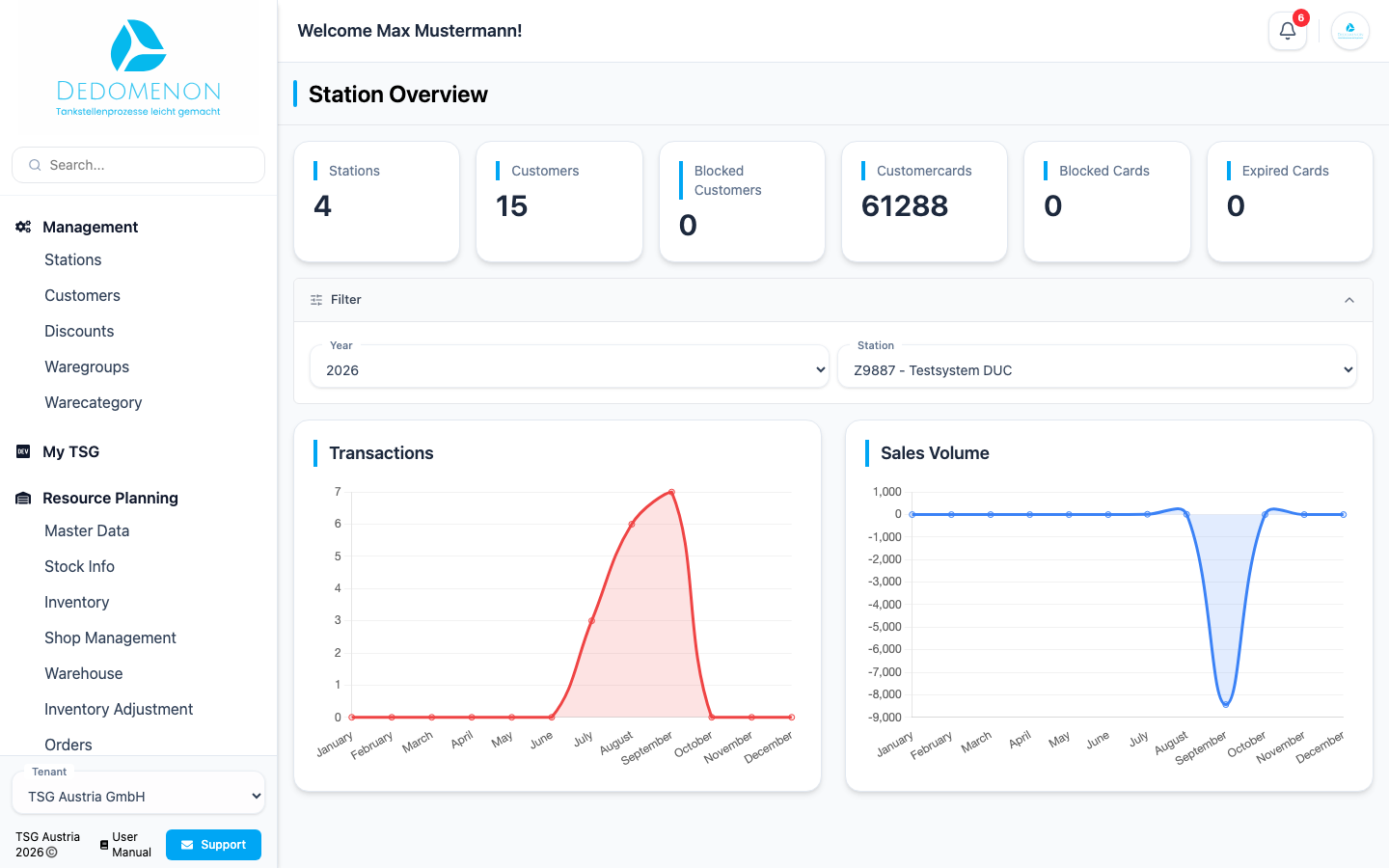
Sidebar
The sidebar lists every page you are allowed to open, grouped by area:
| Area | Pages |
|---|---|
| Management | Stations, Customers, Discounts, Waregroups, Warecategory |
| My TSG | Stations, Terminals, Transactions |
| Resource Planning | Master Data, Stock Info, Inventory, Shop Management, Warehouse, Inventory Adjustment, Orders |
| Finance | Invoices, Delivery Notes, Void Invoices |
| Pricing | Wetstock Pricing, Auto Pricing, E-Control Auto Pricing |
| Analysis | Transactions, Cash, Credit Notes, Open Creditnotes, Offline Payment Vouchers, Summary Reports, Station Reports |
| Settings | Tenant, User Management, LCC Portal Users, E-Control |
Clicking the Dedomenon logo at the top of the sidebar takes you back to the overview.
Search
Use the search field at the top of the sidebar to find any page quickly. Type part of the page name, for example “Inv” for Invoices. Results are grouped by area. Click a result to open the page. When you clear the search field, the regular menu appears again.
Switching tenants and support
At the bottom of the sidebar you find:
- Tenant: If you have access to several companies (tenants), switch between them in this field. All pages then show the data of the selected tenant.
- Support: Opens a form to send a message to support directly from Dedomenon. Enter a subject and a message and click Send email. In urgent cases you can call support at +43 2256 606 620.
- User Manual: Opens this manual in your selected language.
Header bar
The header bar shows the title of the current page and, on the right:
- Messages (bell icon): Notifications, for example about completed background tasks. A counter shows unread messages. Clicking a message opens the Activities page with all details.
- Tenant logo: Opens a menu with Profile Page (see Profile) and Sign Out.
Common controls
Many pages share the same layout. You will see these controls again and again:
| Control | Meaning |
|---|---|
| Search | Filters the table by number or name |
| Pencil icon (yellow) | Edit the record |
| Trash icon | Delete the record. Deleting cannot be undone. Most pages ask for confirmation first |
| Back | Return to the previous page without saving |
| Save (green) | Apply your changes |
| Pagination below tables | Switch pages and choose how many entries are shown per page |
After saving, a short message in the top right corner confirms success (Changes saved!) or shows an error.