Tenant
On the Tenant Settings page you maintain your company (tenant) data: name, address and logo, the bank account for SEPA direct debits, the settings for the finance export, the layout of your invoices and reports, email sending and access to My TSG.
Open Settings → Tenant. You need the Tenant permission for this (see User Management).
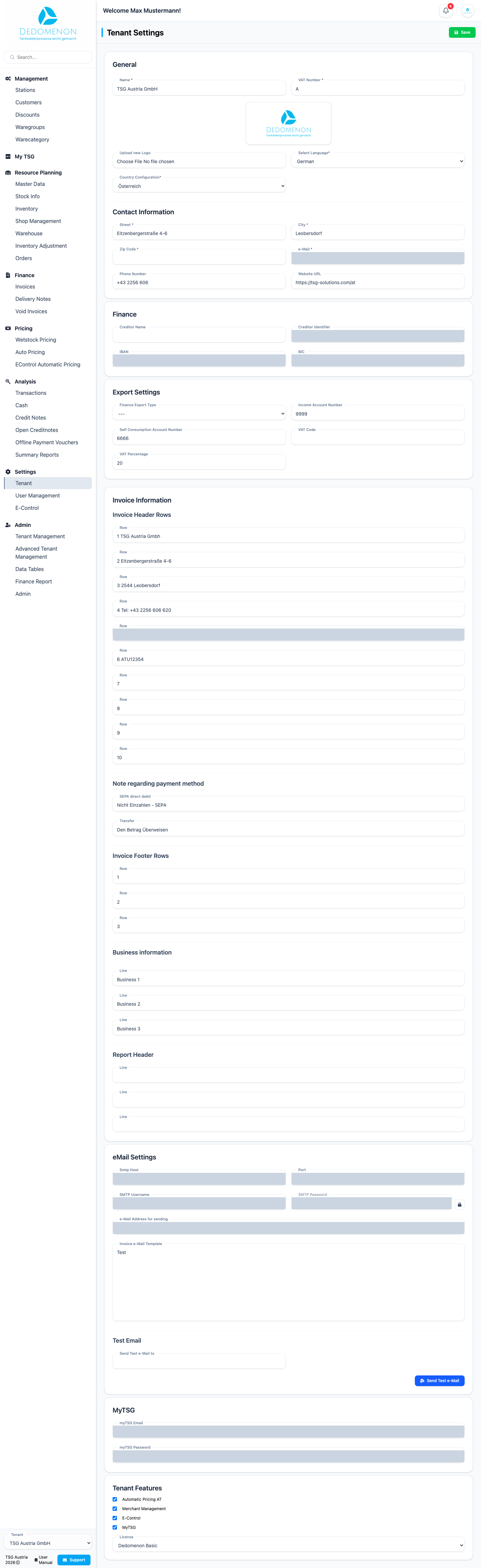
The page consists of several sections one below the other. Change the fields you want and then click Save at the top right. Dedomenon saves all sections at once.
Two changes are saved immediately, without clicking Save: uploading a new logo and changing the SMTP password.
General
| Field | Meaning |
|---|---|
| Name | Name of your company (required) |
| VAT Number | Tax number or VAT ID of your company (required) |
| Upload new Logo | Upload a new logo (JPG or PNG). The current logo is shown above it |
| Select Language | Language of your tenant (required) |
| Country Configuration | Country of your company: Österreich or Slowenien (required) |
The logo appears at the top right in the Dedomenon header. It is saved as soon as you have selected the file.
Contact Information
| Field | Meaning |
|---|---|
| Street, Zip Code, City | Address of your company (required) |
| Email address of your company (required) | |
| Phone Number | Phone number |
| Website URL | Address of your website |
Finance
The bank account used to collect SEPA direct debits from your customers:
| Field | Meaning |
|---|---|
| Creditor Name | Name of the payee as it appears on the customer's bank statement |
| Creditor Identifier | Your SEPA creditor ID |
| IBAN, BIC | Your bank account for the collection |
Export Settings
Settings for exporting the booking data to your accounting:
| Field | Meaning |
|---|---|
| Finance Export Type | Format of the finance export |
| Income Account Number | Revenue account for the bookings |
| Self Consumption Account Number | Account for self consumption |
| VAT Code | Tax code for the bookings |
| VAT Percentage | VAT rate in percent |
Agree these values with your tax advisor or accountant.
Invoice Information
Here you define the texts printed on your invoices and reports.
| Section | Content |
|---|---|
| Invoice Header Rows | Up to ten lines at the top of the invoice, e.g. company name and address |
| Note regarding payment method | Text that appears on the invoice depending on the customer's payment method: SEPA direct debit or Transfer |
| Invoice Footer Rows | Up to three lines at the bottom of the invoice, e.g. bank details and company register number |
| Business information | Three more lines with details about your company |
| Report Header | Three lines at the top of your reports |
eMail Settings
Dedomenon sends invoices by email through your company's mail server. You get the access data from your email provider or your IT department.
| Field | Meaning |
|---|---|
| Smtp Host | Address of the mail server (SMTP) |
| Port | Port of the mail server |
| SMTP Username | User name for the mail server |
| SMTP Password | Password for the mail server. It is hidden and cannot be edited directly here |
| e-Mail Address for sending | Email address from which the emails are sent |
| Invoice e-Mail Template | Text of the email used to send invoices |
Changing the SMTP password
- Next to SMTP Password, click the lock icon.
- In the Change Password dialog, enter the New Password.
- Click Save.
The new password is saved immediately.
Testing email sending
After setting up, check that sending works:
- Save your email settings with Save at the top right.
- Under Test Email, enter an email address you have access to in the Send Test e-Mail to field.
- Click Send Test e-Mail.
If Smtp Host, Port, SMTP Username, SMTP Password, e-Mail Address for sending or Send Test e-Mail to is empty, the message "The test email could not be sent, please check the fields!" appears. Otherwise Dedomenon confirms the sending and the test email arrives at the recipient.
MyTSG
The credentials (email address and password) of your company for My TSG. Dedomenon signs in with them to show the pages in the My TSG area.
The two fields are labelled myTSG Email and myTSG Password.