Customers
Under Management → Customers you manage your local customers: business and private customers who refuel at your stations with customer cards and pay, for example, by invoice or SEPA direct debit.
Customer list
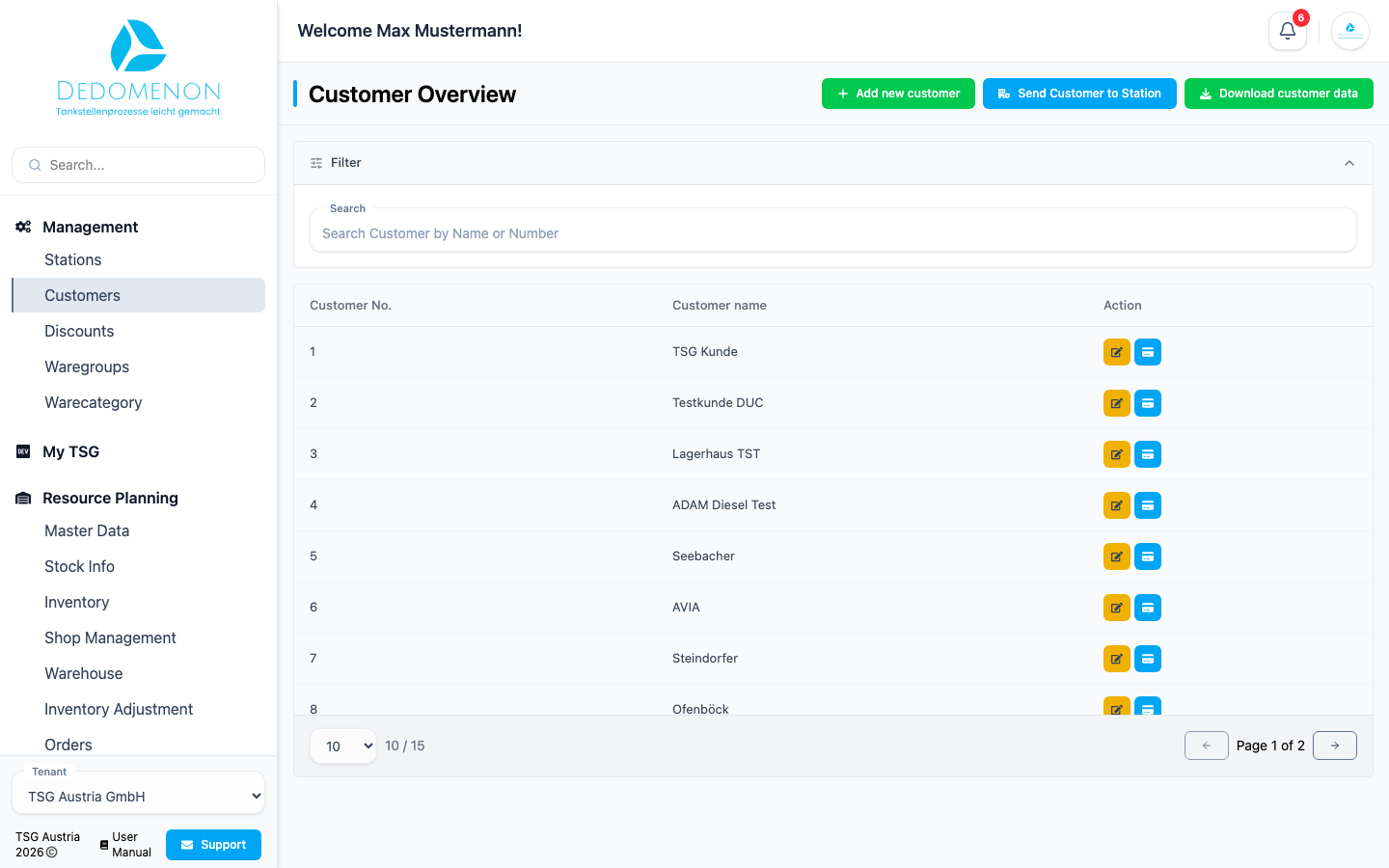
The table shows the Customer No. and Customer name. Use the Search field to find customers by number or name. Each row offers two actions:
- Pencil icon: edit the customer
- Card icon: manage the customer's customer cards
The following buttons are available at the top of the page:
| Button | Function |
|---|---|
| Add new customer | Opens the form for a new customer |
| Send Customer to Station | Sends all customers to all stations again. Useful when a station has been newly set up or data is missing at a station |
| Download customer data | Downloads the currently filtered customers as a CSV file, e.g. for Excel |
Adding a customer
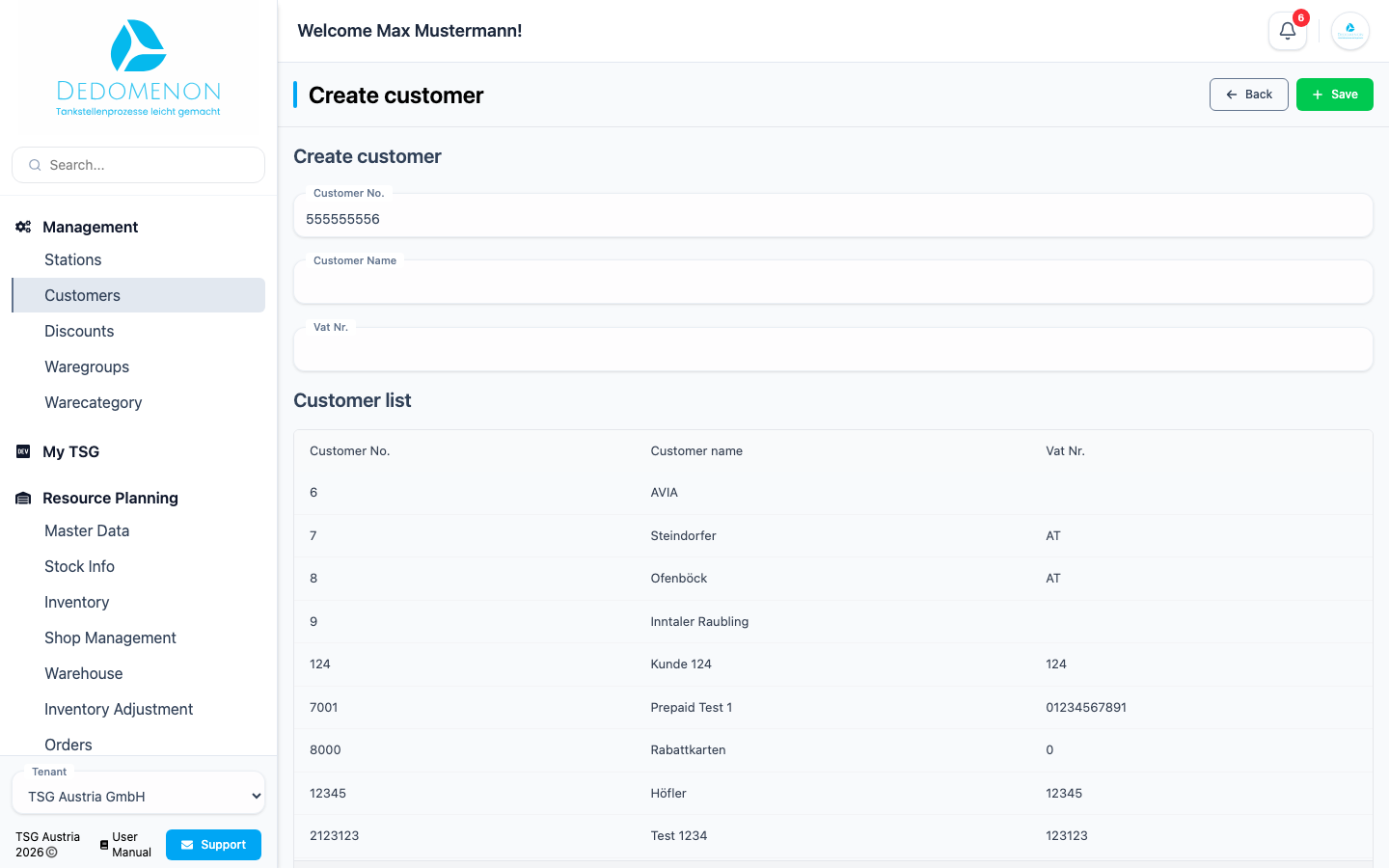
- Click Add new customer.
- Check the customer number. Dedomenon automatically suggests the next free number.
- Enter the customer name and, if available, the VAT number.
- Click Save.
Dedomenon then opens the Edit customer page, where you complete the remaining data. Below the form, the Customer list shows all numbers already in use.
Each customer number may only be used once. If the number is already taken, the customer is not created.
Editing a customer
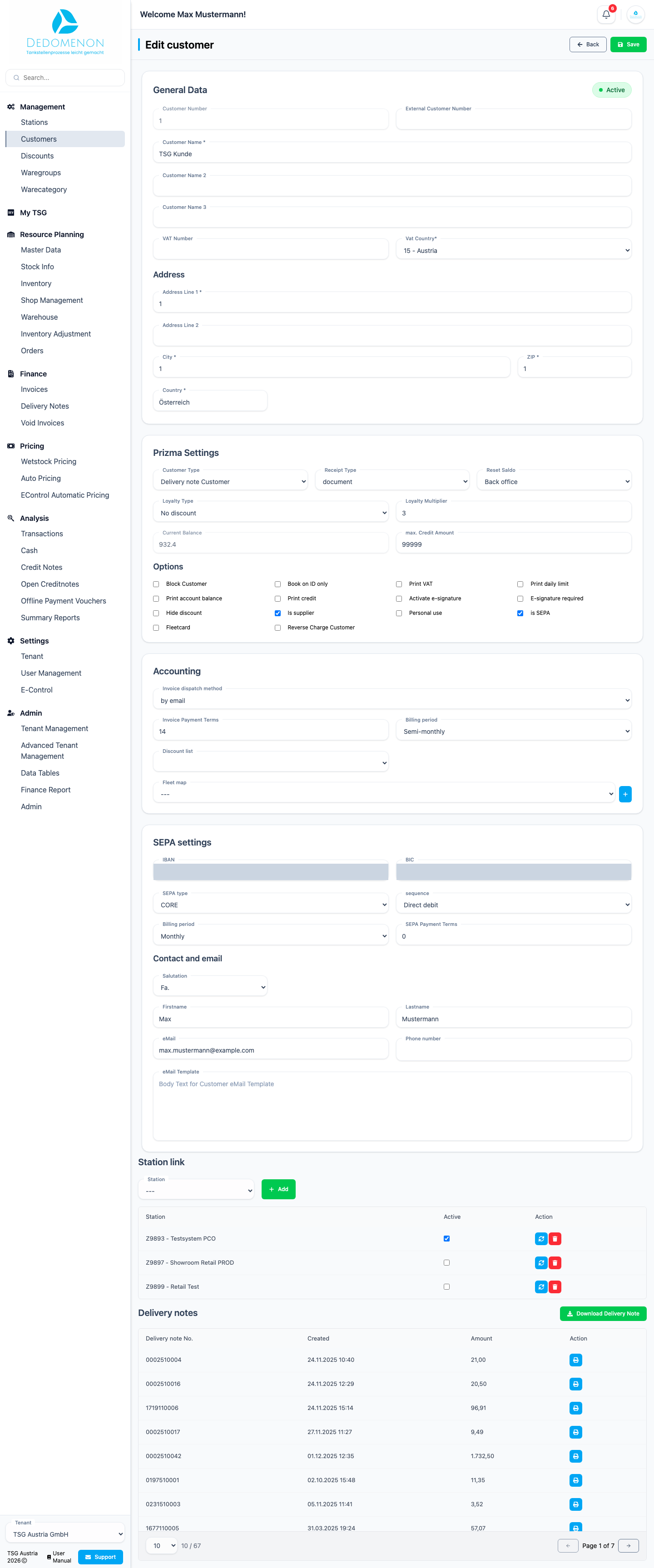
The Edit customer page is divided into sections. Save your changes with Save in the top right corner. If the customer is linked to stations, Dedomenon immediately sends the changes to those stations. The Transferring changes to stations dialog shows the progress per station.
General Data
Customer Number, External Customer Number (e.g. from your accounting software), Customer Name (up to three lines), VAT Number and Vat Country. A status at the top shows whether the customer is Active or Blocked.
Address
Address Line 1, Address Line 2, City, ZIP and Country. The address appears on invoices and delivery notes.
Prizma Settings
Settings for the point-of-sale system at the station:
| Field | Meaning |
|---|---|
| Customer Type, Receipt Type | Type of customer and which receipt the POS creates |
| Reset Saldo | How often the balance is reset |
| Loyalty Type, Loyalty Multiplier | Loyalty point settings |
| Current Balance, max. Credit Amount | Current balance and credit limit of the customer |
Options
| Option | Effect |
|---|---|
| Block Customer | Blocks the customer. Their cards are declined at the stations |
| Book on ID only | Only allow bookings via the customer ID |
| Print VAT, Print daily limit, Print account balance, Print credit | Which details are printed on the receipt |
| Activate e-signature, E-signature required | Offer an electronic signature at the POS or make it mandatory |
| Hide discount | Do not show discounts on the receipt |
| Is supplier, Personal use | Marks suppliers or the company's own consumption |
| is SEPA | Customer pays by SEPA direct debit (see SEPA settings) |
| Fleetcard | Customer uses fleet cards (see Accounting) |
| Reverse Charge Customer | Invoices without VAT (the tax liability passes to the customer) |
Accounting
| Field | Meaning |
|---|---|
| Invoice dispatch method | How the customer receives invoices, e.g. by email |
| Invoice Payment Terms | Payment term on the invoice |
| Billing period | How often the customer is billed, e.g. monthly |
| Discount list | Which discount list applies to the customer |
| Fleet card, Assigned fleet cards | Fleet cards the customer may use. Remove deletes an assignment |
SEPA settings
For customers with is SEPA: SEPA type, sequence, Billing period and SEPA Payment Terms of the direct debit.
Contact and email
Salutation, Firstname, Lastname, eMail and Phone number of the contact person. Under eMail Template you can store a custom text for emails to this customer, e.g. when invoices are sent.
Station link
Define at which stations the customer is known:
- Select a station under Station.
- Click Add.
The table lists all linked stations and whether the link is Active.
Delivery notes
At the end of the page you see the customer's Delivery notes with number, date and amount.
- Download Delivery Note downloads all delivery notes of the customer as a CSV file.
- The action in a row downloads that single delivery note as a PDF.