Credit notes
This chapter describes two pages of the sidebar: Credit Notes for looking up a single credit note and Open Creditnotes for an overview of the open credit notes of all stations.
Look up a credit note
The Credit Notes page (sidebar: Analysis → Credit Notes) shows the details of issuing and redeeming for a credit note number. Its page heading is Creditnotes. You need the Credit Notes permission (see User management).
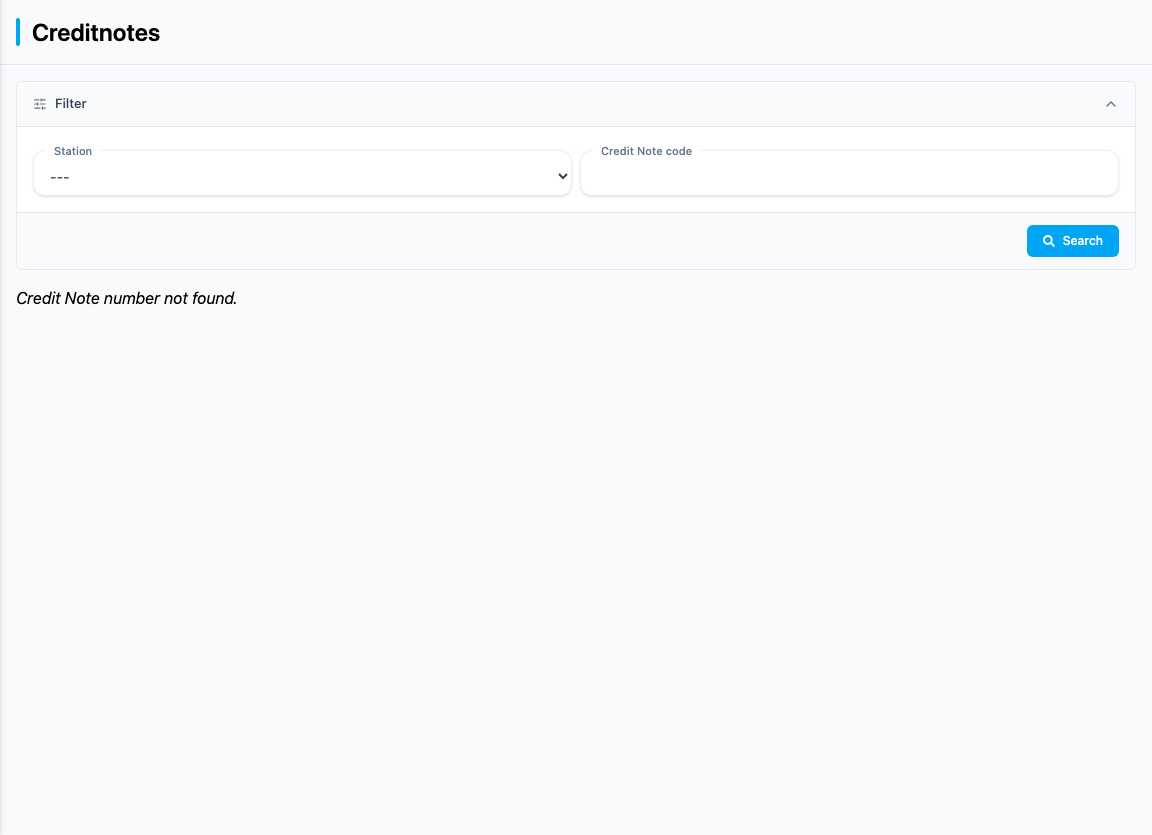
- Select the station under Station.
- Enter the number of the credit note under Credit Note code.
- Click Search.
Both entries are required for the search. Your entries are kept in the browser's address bar. You always search for a single credit note by its number. The page shows the transaction that issued it and, if it has already been redeemed, the transaction in which it was redeemed.
The result consists of up to two sections:
| Section | Content |
|---|---|
| Cashed in | Receipt No., Date, Station, Total, BNA No., BNA Status, Credit Note code, Value and, if present, New Credit Note |
| Issued | Receipt No., Date, Station, Total, BNA No., BNA Status, Credit Note code and Value of the receipt that issued the credit note |
If the credit note has not been redeemed yet, the Cashed in section is replaced by the message "This remaining credit has not yet been redeemed." If no transaction issued that number, nothing is found and the message reads "Credit Note number … not found." All fields are view-only.
The Station field of the results currently shows the internal ID of the station, not its name.
Open credit notes
The Open Creditnotes page (sidebar: Analysis → Open Creditnotes) shows the open credit notes per station. Its page heading is Open Credit Notes. You need the Open Credit Notes permission.
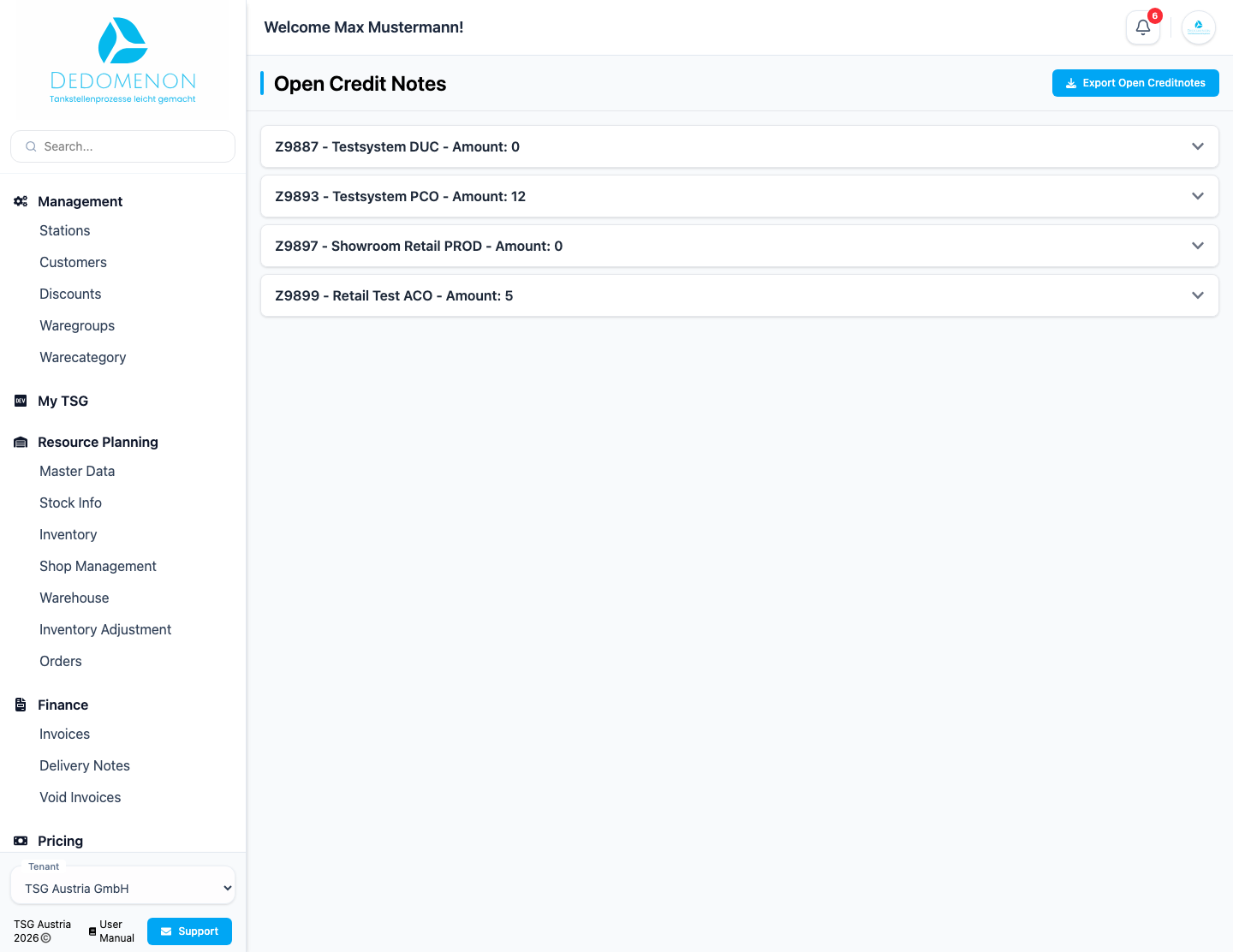
Each station appears as an expandable entry with its name and the number of open credit notes (example: "Station Vienna - Amount: 3"). When expanded, you see:
| Column | Meaning |
|---|---|
| Date | Date and time (in the station's time zone); sortable |
| Device | Device (terminal); sortable |
| Pump | Fuel pump |
| Product Name | Product of the receipt |
| Volume | Quantity |
| Sum | Sum of the receipt |
| Open Credit Note Nr. | Number of the open credit note |
| Credit Amount | Value of the credit note |
| Reference Nr. | Number of the associated receipt |
| Actions | Print and delete (see below) |
At the end of the table you find the sum of the Credit Amount values. If there are none, "No outstanding balances" is shown.
Print a receipt
The printer icon downloads the receipt as a PDF file.
Delete a credit note
- Click the trash icon in the row.
- In the Delete remaining balance window, enter a Reason. The field is required.
- Click Delete (or Cancel).
On success, "Remaining balance has been successfully deleted." appears, otherwise "Error deleting Credit Note!". The list is reloaded afterwards. The reason is stored. The credit note disappears from the open list, and the station is instructed to no longer accept it; after that it cannot be redeemed at the station any more. The transfer to the station happens in the background shortly afterwards, while the success message appears immediately.
The credit note is deleted irrevocably and cannot be restored. The window asks you to check your entry and to print the receipt beforehand. Print it before you delete.
Export open credit notes
The Export Open Creditnotes button exists twice:
- In the page header: starts the export for all stations.
- In the expanded entry of a station: starts the export for that station only.
The export runs as a background task. A message confirms that the task has been created. You can follow its progress under Activities.