Master Data
Under Resource Planning → Master Data you maintain all articles of your company, from fuel to beverages. Here you create articles, change prices, VAT codes and barcodes, and the article card shows how the stock of an article has developed.
You need the Master Data permission. Your company's administrator assigns permissions in User Management.
Article list
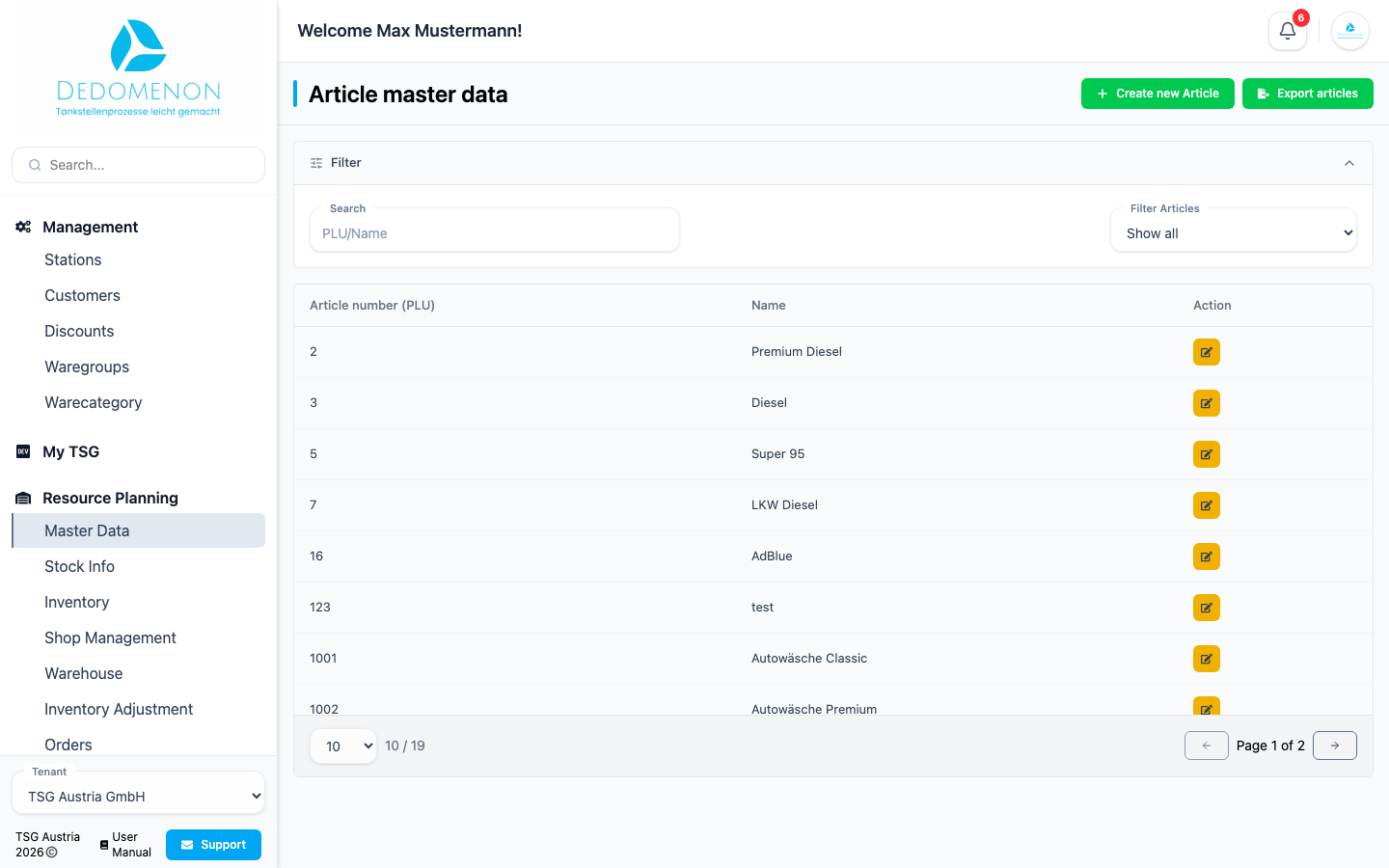
The Article master data page lists all articles with Article number (PLU) and Name. Click a column heading to sort the list.
- Search: Enter the PLU or name (or part of it). The list is filtered as you type.
- Filter Articles: Show all, Active Article or Deactivated Articles.
- The pencil icon in the Action column opens the article for editing.
- Create new Article opens the form for creating an article.
- Export articles downloads the list as currently shown (including search, filter and sorting) as the CSV
file
articles.csv. For each article the file contains: ID, PLU, name, ware group, card code, purchase price, net price, selling price and barcodes (semicolon-separated). If the list is empty, nothing happens when you click.
Create an article
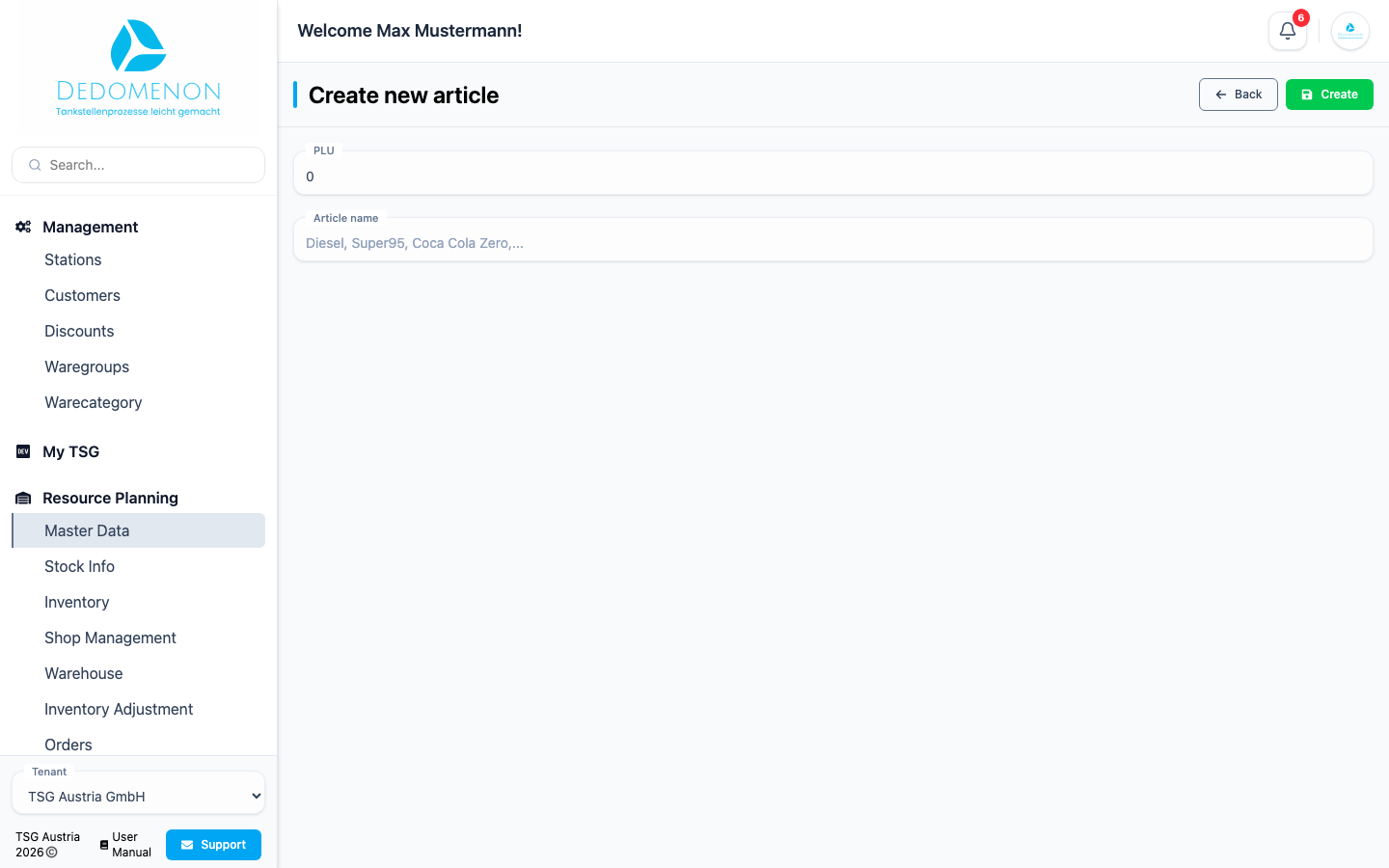
- In the article list, click Create new Article.
- Enter the PLU (article number) and the Article name, for example "Diesel" or "Coca Cola Zero".
- Click Create. Back leaves the page without saving.
After saving, "Changes saved!" appears and the article opens automatically for editing, where you add all further details.
If an article with this data already exists, the message "An object with this data exists already." appears and the article is not created.
Edit an article
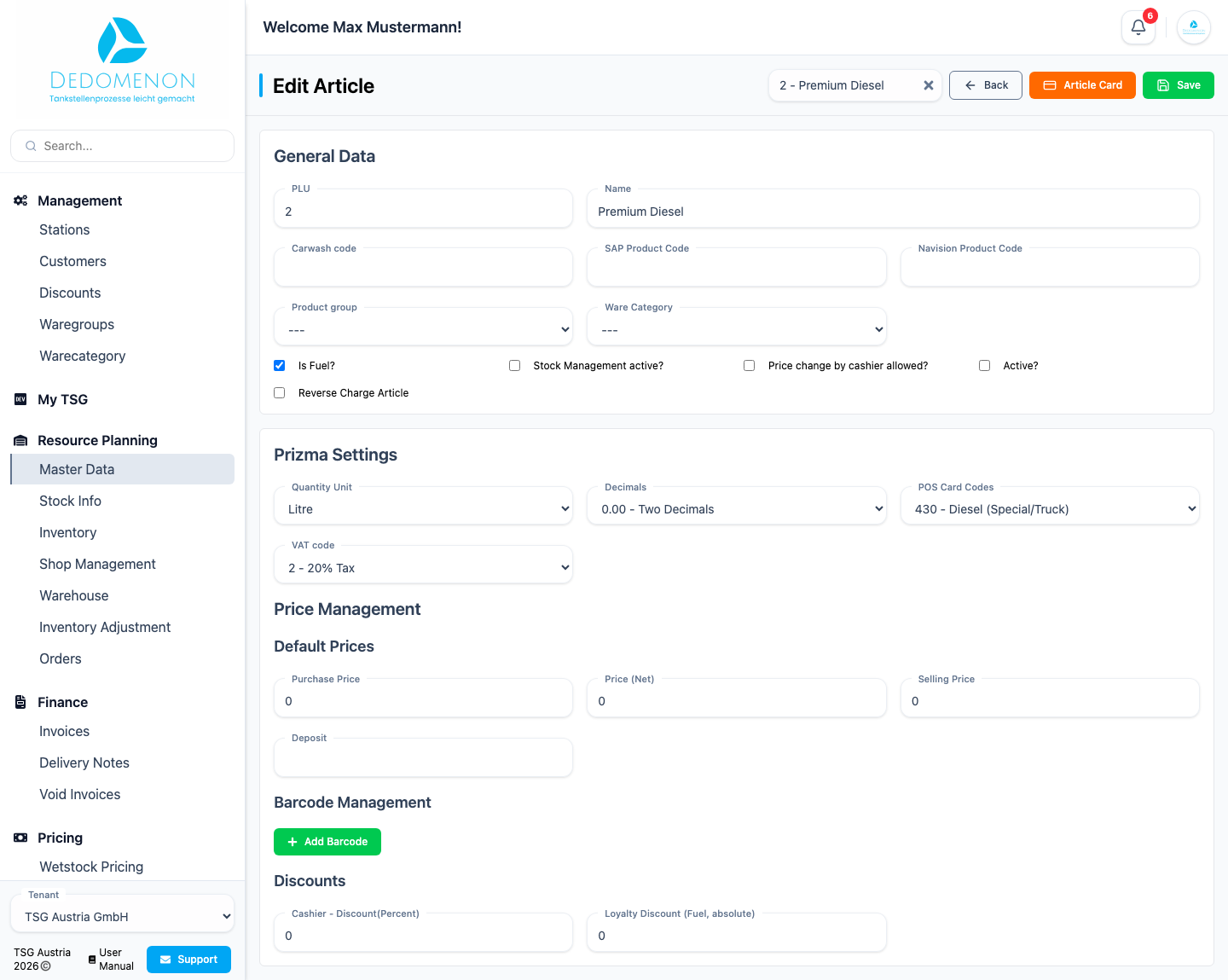
The Edit Article form consists of the sections General Data and Prizma Settings (including price management). In the header, the Select Article field takes you directly to another article. Back returns to the previous page, Article Card opens the article card of this article and Save applies your changes.
- Open the article using the pencil icon in the article list.
- Change the fields you need.
- Click Save. When saving succeeds, "Changes saved!" appears.
General Data
| Field | Meaning |
|---|---|
| PLU | Article number |
| Name | Name of the article |
| Carwash code | Number of the car wash program the station starts when this article is sold; only for car wash articles |
| SAP Product Code | Product number in SAP |
| Navision Product Code | Product number in Navision |
| Product group | Selection from your ware groups |
| Ware Category | Selection from your ware categories |
| Is Fuel? | Marks the article as fuel |
| Stock Management active? | If ticked (and the article is active), every sale imported from the station automatically reduces the stock of the article at that station; goods receipts, write-offs and inventories also change the stock |
| Price change by cashier allowed? | Cashiers may change the price at the till |
| Active? | Marks the article as active. Deactivated articles are found using the filter Deactivated Articles |
| Reverse Charge Article | Marks the article for reverse charge VAT. It only takes effect on invoices to customers marked as Reverse Charge Customer in the customer master data (see Customers); these articles are then invoiced under reverse charge. Not relevant for sales at the station |
Prizma Settings
| Field | Meaning |
|---|---|
| Quantity Unit | Pieces, Litre or Kilogram |
| Decimals | Number of decimal places of the quantity (none, one or two) |
| POS Card Codes | Product code with which the POS classifies the article (e.g. fuel types), for example "425 - Diesel" or "125 - Super"; it is transmitted to the stations with the article. Shop articles need one, otherwise Sync Shop fails with a message naming the articles without it (see Shop management) |
| VAT code | Tax rate of the article. The choice depends on the country of your company (default: Austria) |
Price Management
| Field | Meaning |
|---|---|
| Purchase Price | Purchase price (up to three decimal places) |
| Price (Net) | Net price |
| Selling Price | Selling price including tax |
| Deposit | Deposit amount |
| Cashier - Discount(Percent) | Discount in percent (0 to 99.99) that cashiers can grant |
| Loyalty discount (%) | Base discount as a percentage. A base discount of 1% and a loyalty multiplier of 3 result in 3% |
| Loyalty Discount (Fuel, absolute) | For fuel articles: absolute base discount value. The effective discount is calculated by multiplying it by the loyalty multiplier of the local customer |
Net and gross prices are converted automatically: if you change the net price or the selling price, or choose a different VAT code, the other price is recalculated using the tax rate.
Barcodes
Add Barcode adds a new field Barcode 1, Barcode 2 and so on. The trash icon next to it removes the barcode from the form (it is only saved when you click Save). A barcode consists of 1 to 18 digits and may appear only once per article.
Confirm a price change
If you changed the Selling Price, the Price Change dialog appears when saving, with the note "This price change will be rolled out to all shops. Do you want to continue?" and the Current Price and the New Price. The article is saved only after you click Confirm; Cancel discards the change. After confirming, the new price is entered in all shops that contain the article. The stations receive the new price only when the respective shop is synchronised with Sync Shop (see Shop management). Other changes are saved without a confirmation.
Article card
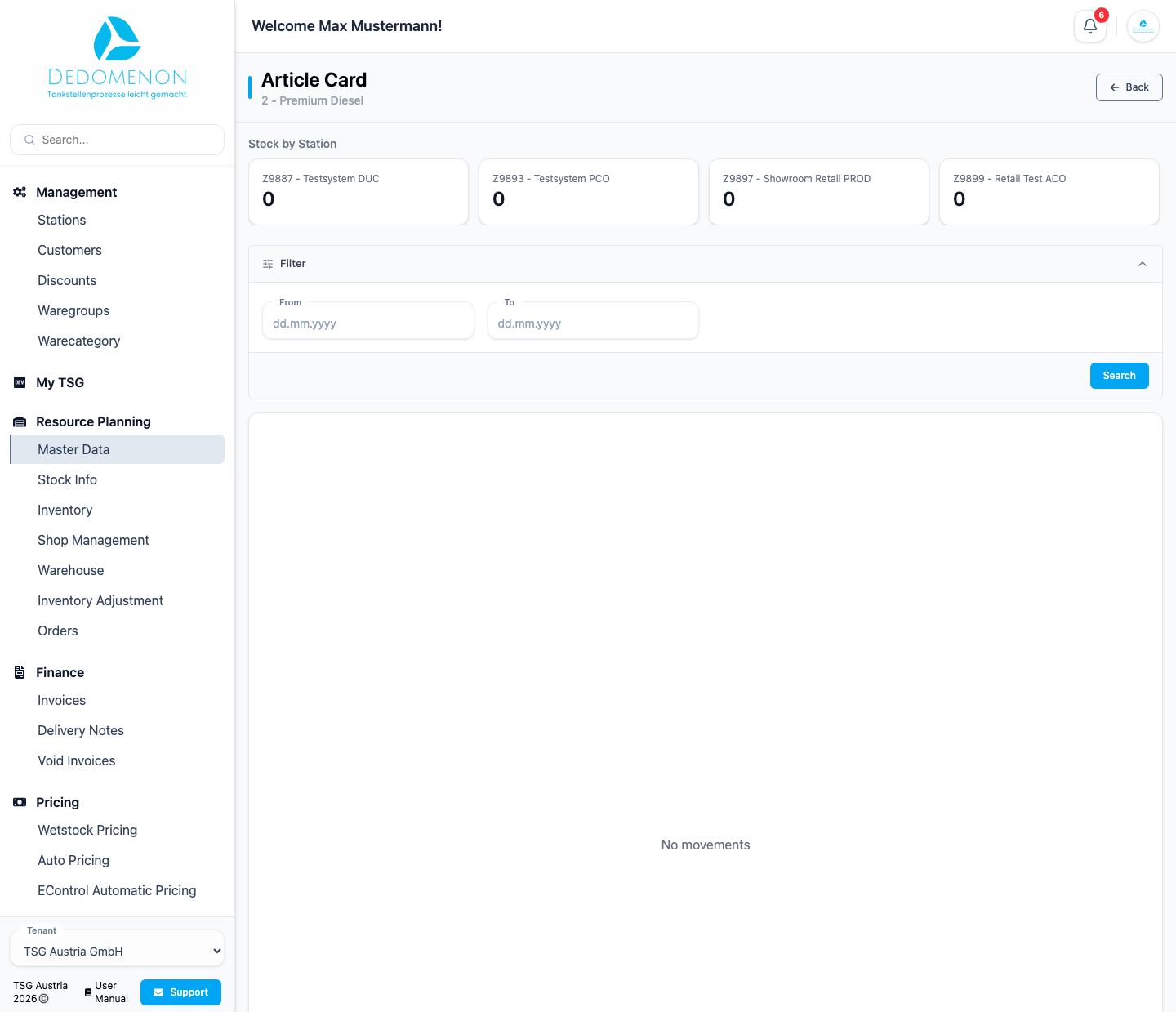
You open the article card with the Article Card button in the edit form. Below the title with PLU and name it shows:
- Stock by Station: one tile per station with the current stock of the article. Clicking a tile restricts the movements to that station; clicking again clears the selection.
- From / To with Search: restricts the movements to a period. Both entries are optional.
- A table of movements with the columns Date, Reference, Station, Goods Receipt, Goods Issue, Stock (running stock after the movement), Purchase Price and Selling Price.
The reference is Goods Receipt, Goods Issue or Inventory. For inventories, the difference appears in the Goods Receipt column (surplus) or the Goods Issue column (shortage), depending on its sign. The footer shows the Total of receipts and issues, their balance and the Average of the prices (weighted by quantity). If there are no movements, "No movements" appears.
The card opens only for a specific article, so always open it from the edit form. If the article cannot be found, "Article not found." appears.
See also: Stock Info and Inventory.