Transactions
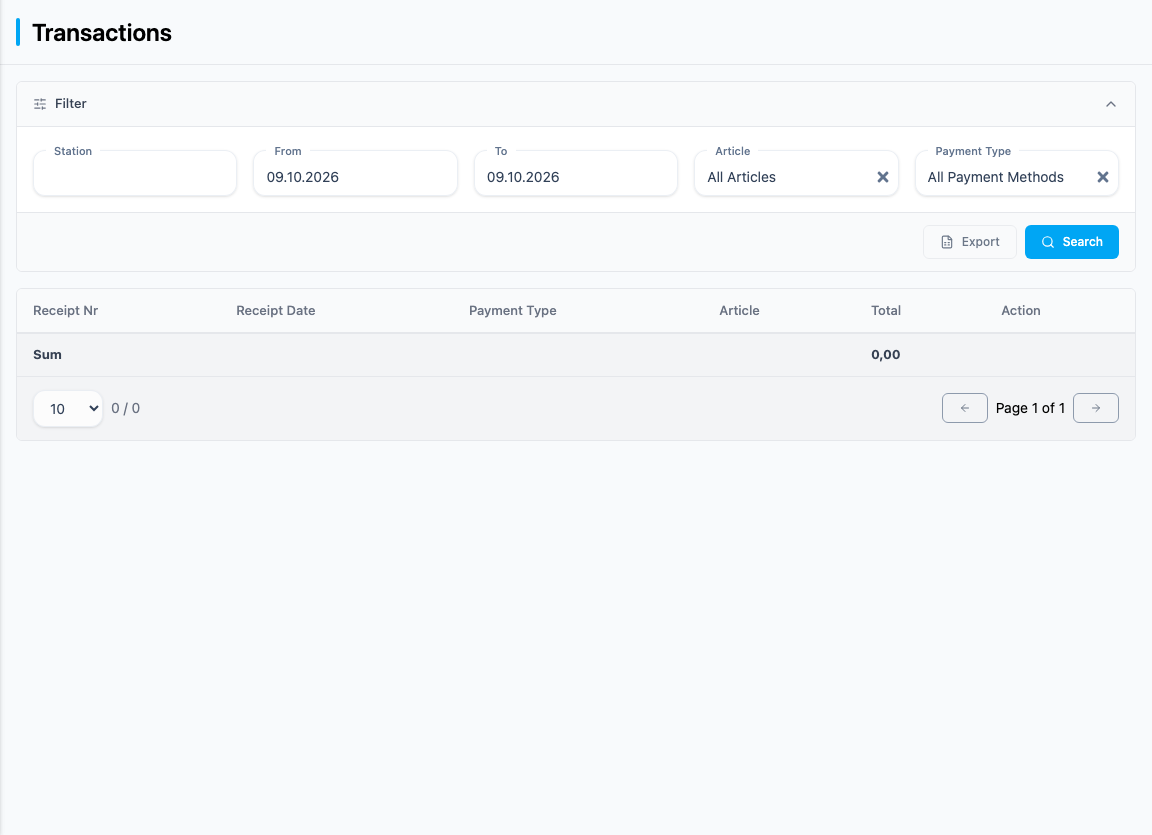
The Transactions page shows the sales (receipts) of a station for a period you choose. You can narrow the list down by article and payment type, export it as a file, and open the details of each receipt including a receipt copy. The page is for viewing only; you cannot change transactions here.
You find the page in the sidebar under Analysis → Transactions. You need the Transactions permission (see User management).
Search for transactions
- Select the station under Station. As long as no station is selected, no transactions are loaded.
- Set From and To. Both default to today's date.
- Click Search.
Your selection is saved in the browser's address bar. You can therefore reload the page or share the link and the same selection appears. If you click Search again with an unchanged selection, the list is reloaded.
Narrow down by article and payment type
Use the Article and Payment Type fields to narrow down the list that has already been loaded. The filter takes effect immediately; there is no need to search again. Article lists your articles with name and number, Payment Type lists the known payment types. By default, all transactions are shown.
The "all" entries in the two selection lists are All Articles and All Payment Methods.
The list
| Column | Meaning |
|---|---|
| Receipt Nr | Receipt number of the transaction |
| Receipt Date | Date and time of the receipt |
| Payment Type | Payment type of the receipt (the first one if there are several payments) |
| Article | Name of the article, or "Multiple Articles" if there are several items |
| Total | Receipt total |
| Action | Magnifier icon to open the details |
The list is sorted with the newest receipt first. Click the column headers Receipt Nr, Receipt Date and Total to sort differently. At the end of the list you find the Sum of all displayed transactions, followed by the pagination.
Transaction details
Click the magnifier icon in the Action column. The Transaction Details window shows:
| Section | Content |
|---|---|
| OPT Receipt Header | Transaction ID, Receipt Nr., Receipt Date and Receipt Sum |
| Payment Information | per payment: Reason of Payment (ROP), Method of Payment (MOP), MOP Info 1 (ADDX), MOP Info 2 (ADDY), Card Number (PAN) and System Trace Audit Number (STAN) |
| Shopping Cart | per item: name, product code, amount, Product Amount, Product Netto Price, MwSt. (%) and Sum VAT; below it the Receipt Sum |
Receipt Copy opens the receipt as a PDF in a new browser tab. Close closes the window.
The window shows the Card Number (PAN) of the payment. Only pass on screenshots and printouts of this view if the card number is not legible.
Export transactions
Export downloads the transactions of the station and period you last searched for as a file (the file name starts with "transactions" and contains the from and to dates). The button is only enabled once the list contains transactions.
The export follows the station and period. The narrowing by Article and Payment Type is not taken into account.