Delivery notes
Delivery notes are the basis of your invoices. On the Deliverynotes page (sidebar: Finance → Delivery Notes) you search delivery notes, create missing ones manually, rebook delivery notes to another customer and create the invoices from them (see Invoices).
You need the permission Delivery Notes. Your administrator assigns permissions under Settings → User management (see User management).
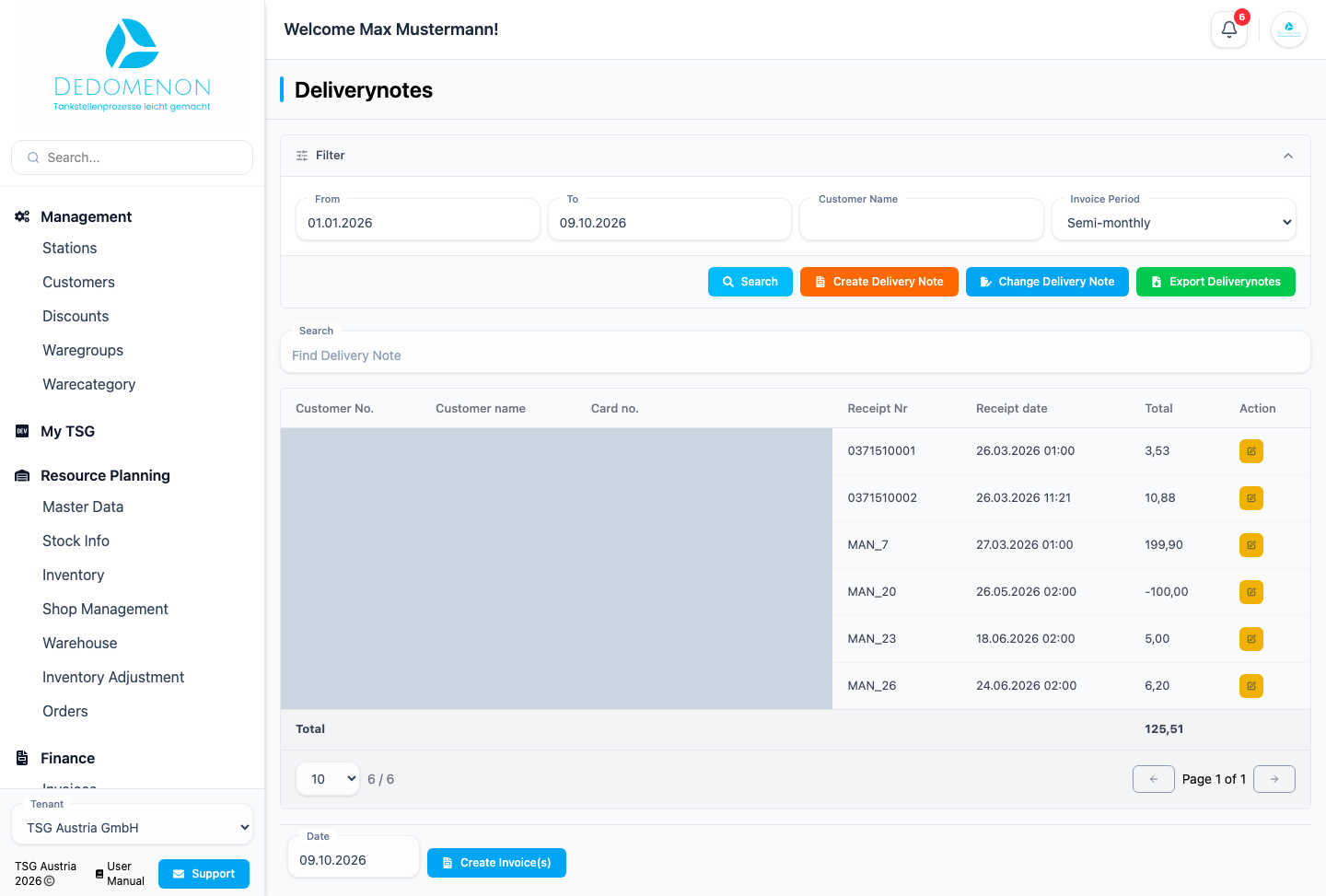
Searching delivery notes
Choose the filters and click Search:
| Field | Meaning |
|---|---|
| From / To | Period. The current month is preset. |
| Customer Name | A single customer (selection shows customer number and name) |
| Invoice Period | Semi-monthly or Monthly (preset: Semi-monthly). The period is stored per customer in the customer master data; the list shows only delivery notes of customers with the selected period. Monthly customers therefore appear only after selecting Monthly. |
The filters are kept in the browser's address bar and survive a page refresh.
The list shows for each delivery note Customer No., Customer name, Card no., Receipt Nr, Receipt date and Total (net amount). The Search field above the table additionally filters the list by customer number, customer name or receipt number ("Find Delivery Note"). The columns are sortable. The Total row adds up only the delivery notes of the table page currently displayed. The pencil icon opens the delivery note for editing.
Creating invoices
Below the list, as soon as at least one delivery note has been found, you create the invoices:
- Set the filters so that the list shows exactly the delivery notes to be invoiced.
- Choose the invoice Date at the bottom.
- Click Create Invoice(s).
One invoice per customer in the list is created, containing all of that customer's delivery notes found. You then find the finished invoices on the Invoices page. The invoiced delivery notes disappear from the delivery note list because they are now part of the invoice. This way you invoice all semi-monthly or all monthly customers together. The Invoice Period does not change how invoices are calculated; you choose the date range separately.
All delivery notes found are invoiced, not just those on the current table page. The search field above the table does not restrict the invoicing. There is no confirmation prompt. Check filters and list before clicking.
Creating a manual delivery note
With Create Delivery Note you enter a delivery note by hand.
- Click Create Delivery Note.
- In the Manual Deliverynote dialog, choose the Customer and the Issue Date.
- If the customer has cards, you can optionally choose a card (PAN). The selection shows the card's PAN and info (see Customer cards).
- Choose an article under Select Article. In the New article section, name and net price are taken over. Check Price (Net) and VAT code and enter the Quantity.
- Click Add. The article appears in the Article List with its net amount. The trash icon removes a row again.
- Repeat steps 4 and 5 for further articles and click Save.
The VAT code contains the tax rate in percent (for articles with an Austrian tax rate it is preset).
Rebooking a delivery note
With Change Delivery Note you assign a delivery note to another customer, for example if a card was assigned to the wrong customer. The delivery notes of the current list are available for selection; if there are none, "No Delivery Note selected" appears.
- Click Change Delivery Note.
- In the Rebook Deliverynote dialog, choose the Deliverynote. For orientation, the selection shows receipt number, date, customer number and name.
- Under Deliverynote Information you see customer, number, date, PAN and Sum for checking.
- Under New Customer, choose the new Customer and, if the customer has cards, optionally the Map (card) field.
- Click Save.
Rebooking takes place without a confirmation prompt. Check the new customer before saving.
Exporting delivery notes
With Export Deliverynotes you download the delivery notes of a period for one customer as a CSV file
(deliveryNotes.csv). In the dialog, choose From, To and the Customer Name and click Export.
If there is no data, "No data found" appears.
Editing a delivery note
The pencil icon in the list opens the Edit Delivery Note page.
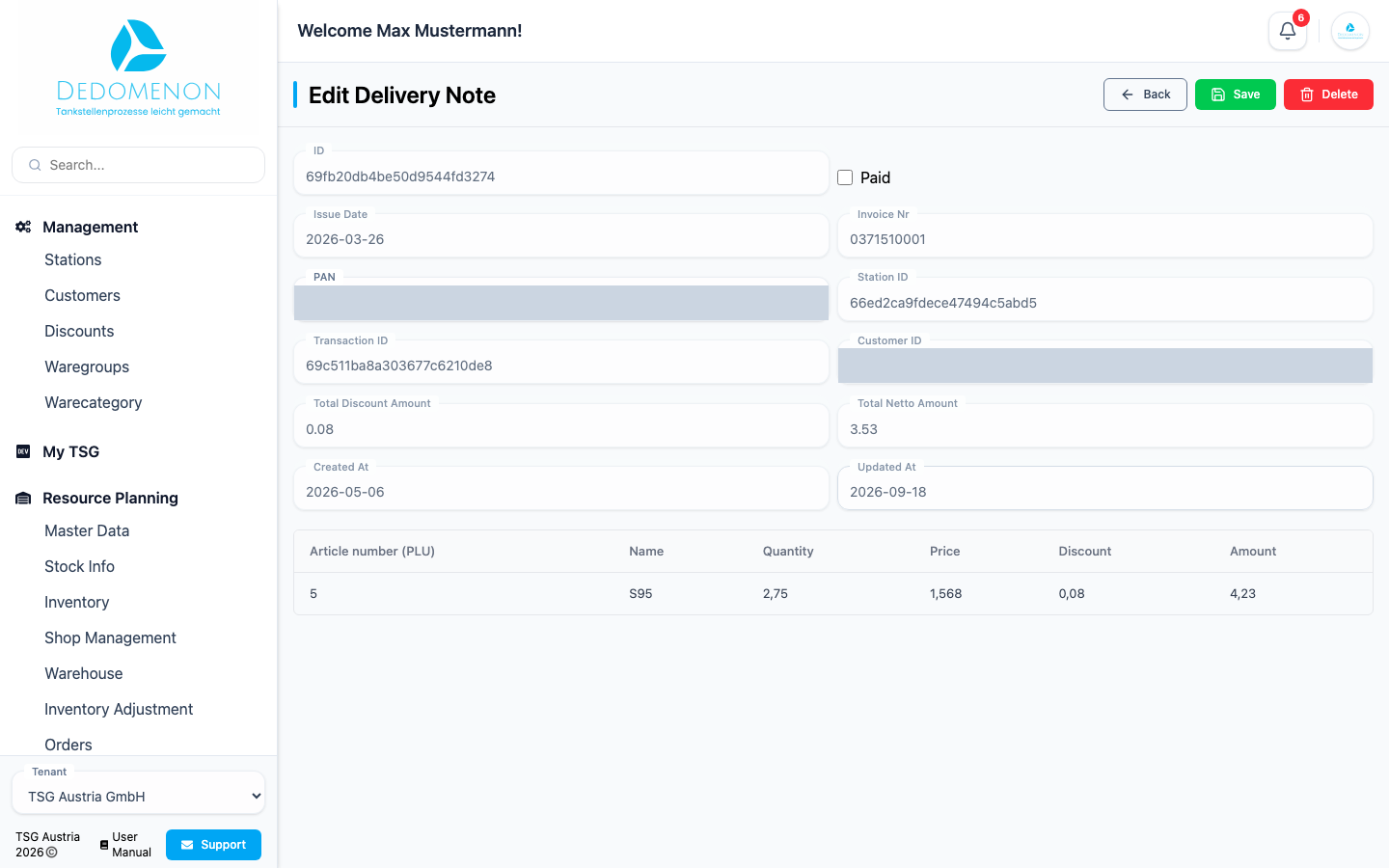
You can change Paid (checkbox) and PAN. All other fields are read-only:
| Field | Meaning |
|---|---|
| ID | Internal identifier of the delivery note |
| Issue Date | Date of the delivery note |
| Invoice Nr | Receipt number |
| Station ID and Transaction ID | Station and transaction the delivery note originates from |
| Customer ID | Internal identifier of the customer |
| Total Discount Amount and Total Netto Amount | Discount and net totals |
| Created At / Updated At | Timestamps |
Below, a table lists the items with Article number (PLU), Name, Quantity, Price, Discount and Amount.
At the top you find Back, Save and Delete. Deleting shows the confirmation prompt Delete Delivery Note?; only after confirming with Delete is the delivery note removed, and according to the prompt the action cannot be undone. Afterwards you return to the previous page.
After deleting, the message "Job was deleted" appears, although the delivery note is what was deleted.