Invoices
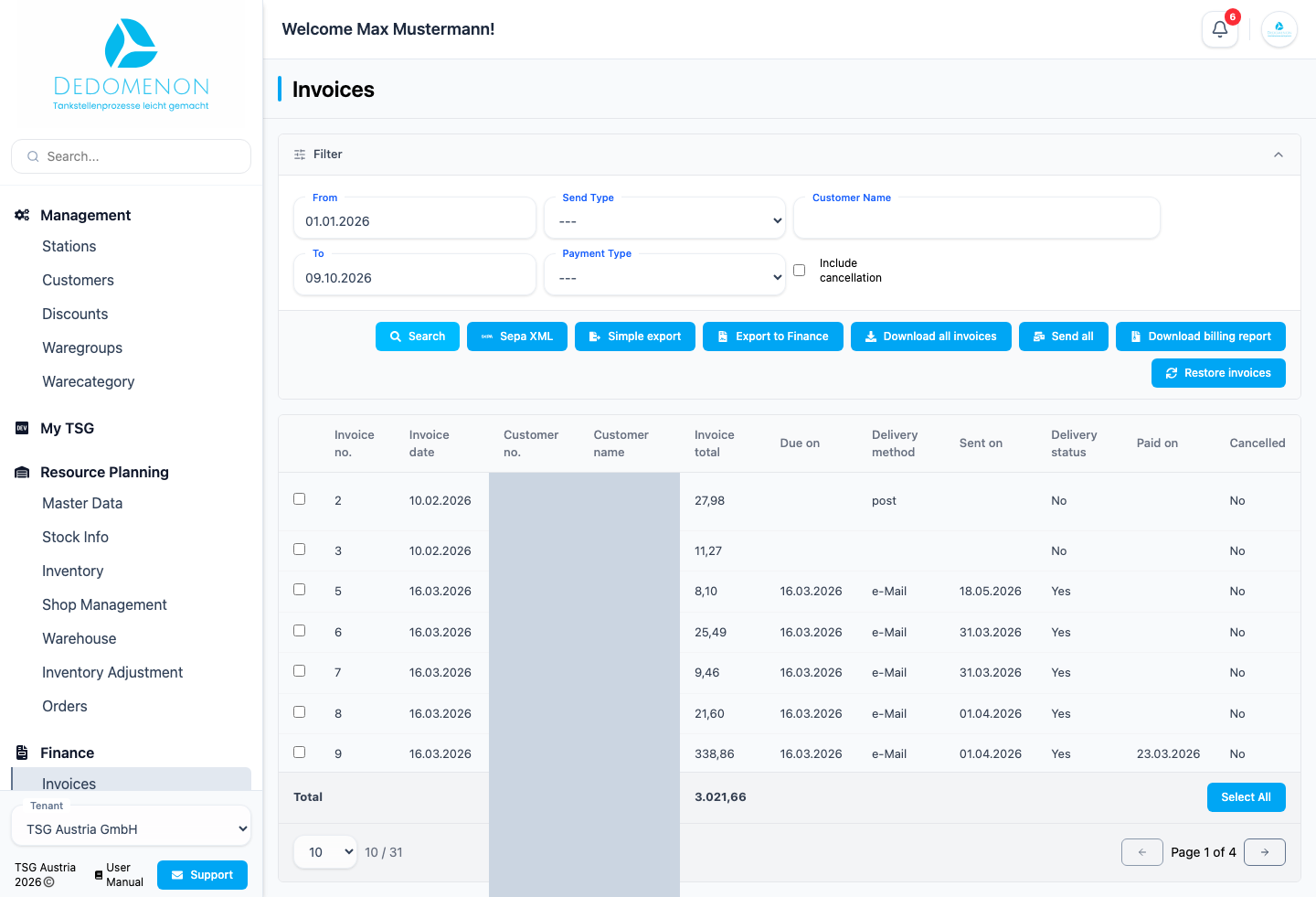
The Invoices page (sidebar: Finance → Invoices) shows the invoices created for your customers. From here you send invoices by email, download them as PDF, record the payment date, cancel them or export them for accounting.
You need the permission Invoices Overview. Your administrator assigns permissions under Settings → User management (see User management).
How are invoices created?
Invoices are not created on this page. They are created from delivery notes: on the Delivery Notes page you select a period, enter an invoice Date and click Create Invoice(s) (see Delivery notes). The invoices created then appear here.
The invoice layout (header and footer lines, payment note) and the invoice email template are maintained by administrators under Settings → Tenant (see Tenant).
Searching invoices
Narrow down the list above the table and click Search:
| Field | Meaning |
|---|---|
| From / To | Period. The current month is preset. |
| Send Type | All, by post or by email |
| Customer Name | A single customer (selection shows customer number and name) |
| Payment Type | All, Transfer or SEPA |
| Include cancellation | Also shows cancelled invoices |
The selected filters are kept in the browser's address bar. You can therefore refresh the page with the same settings or bookmark it.
The invoice list
The list shows for each invoice:
| Column | Meaning |
|---|---|
| Checkbox | Selects the invoice for the bulk functions (see below) |
| Invoice no. | Invoice number (sortable) |
| Invoice date | Date of the invoice (sortable) |
| Customer no. and Customer name | Invoice recipient (sortable) |
| Invoice total | Gross amount |
| Due on | Due date |
| Delivery method | Post or email |
| Sent on | Date of dispatch |
| Delivery status | Yes or No |
| Paid on | Date of payment |
| Cancelled | Yes if the invoice has been cancelled |
The last row shows the Total of all invoices found. With many results, use the paging at the end of the table. Select All and Deselect all select or deselect all invoices found.
Actions for a single invoice
Right-click the invoice (on touch devices: press and hold). A menu opens:
| Entry | Effect |
|---|---|
| Creates the invoice PDF and opens it in a new browser tab | |
| Send email | Sends the invoice to the customer by email |
| Download PDF | Creates the PDF and downloads it |
| Restore | Recalculates the invoice |
| Paid | Opens a dialog in which you enter the payment date |
| VOID | Cancels the invoice |
| CSV | Downloads the invoice including its delivery notes as a CSV file |
| Edit | Opens the invoice for editing (see below) |
The PDF is created in the background. The page shows the message "Invoice <number> is being generated." and opens or downloads the file as soon as it is ready. You can also follow the progress of such tasks under Activities (see Activities).
Sending an invoice by email
- Right-click the invoice and choose Send email.
- After sending, the message "Invoice <number> has been sent." appears; on failure, "Error sending invoice <number>."
The invoice is sent immediately and without a confirmation prompt.
Recording a payment
- Choose Paid in the menu.
- Enter the Payment Date in the dialog.
- Click Paid (or Cancel).
Cancelling an invoice
Choose VOID in the menu. The invoice is cancelled immediately and without a confirmation prompt; the list is then reloaded. A new cancellation invoice with its own number is created that refers to the original invoice; the original invoice stays unchanged. The delivery notes of the cancelled invoice reappear in the delivery note list and can be invoiced again. A cancellation cannot be undone, so cancel each invoice only once. You find the cancellation invoice on the page Void invoices.
Check the row carefully before clicking VOID: there is no confirmation prompt.
Bulk functions for selected invoices
Tick the desired invoices in the list and click one of the buttons next to Search. If no invoice is selected, the message "No Invoice selected" appears.
| Button | Effect |
|---|---|
| Sepa XML | Creates a SEPA file (XML) with the selected invoices that are paid by SEPA. If none of them is included, "No Sepa Invoices selected" appears. |
| Simple export | Downloads the selected invoices as a CSV file (rechnungen.csv) |
| Export to Finance | Downloads a CSV file for accounting (financialReport.csv) |
| Download all invoices | Combines the selected invoices into one file in the background and downloads it |
| Send all | Sends the selected invoices by email, but only those with delivery method email that have not been sent yet |
| Download billing report | Downloads the billing report for the selected invoices |
If all selected invoices have already been sent, Send all shows "All selected invoices have already been sent!". This dispatch also takes place without a confirmation prompt.
The SEPA file and the exports contain bank details and addresses of your customers. Handle the downloaded files confidentially.
Editing an invoice
Edit in the context menu opens the page titled "Invoice: <number>, Customer: <customer number> - <name>".
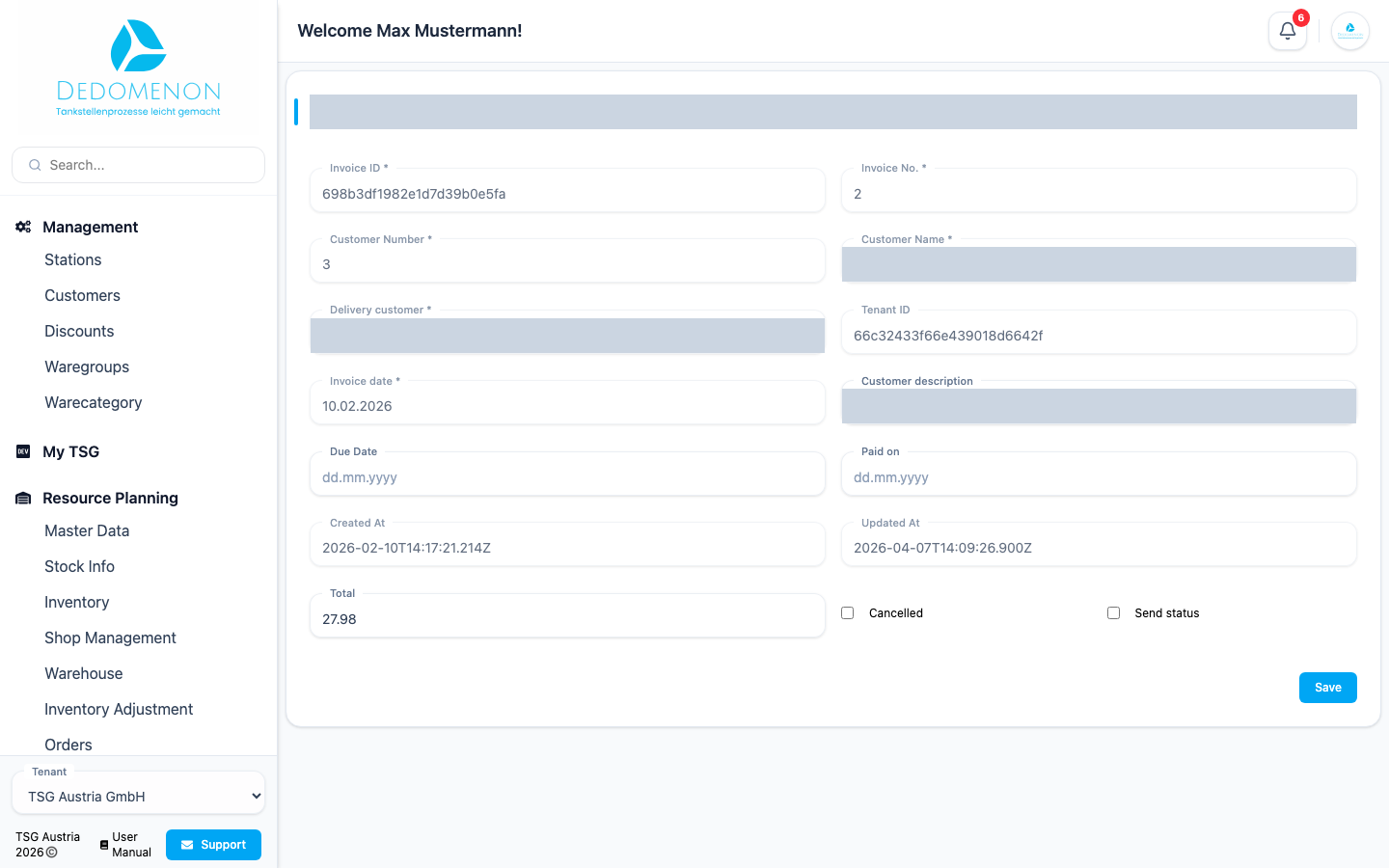
Most fields are read-only. You can change:
| Field | Meaning |
|---|---|
| Customer description | Descriptive text for the customer |
| Due Date | Due date |
| Paid on | Date of payment |
| Total | Invoice total |
| Cancelled | "Cancelled" flag |
| Send status | "Sent" flag |
Read-only fields include Invoice No., Customer Number, Customer Name, Delivery Customer, Invoice Date, Created At and Updated At. Save applies your changes ("Changes saved!").
Only change Total, Cancelled and Send status if you are sure: the change is saved without a confirmation prompt. To cancel an invoice, use the VOID entry in the invoice list instead.