Wetstock Pricing
On the Manage fuel prices page (sidebar: Pricing → Wetstock Pricing) you see the current fuel prices of your stations and send new prices to the stations. For each fuel you decide whether the new price applies immediately, at end of day or at a fixed time.
You need the permission Wetstock Pricing. The administrator of your company assigns permissions under Settings → User Management (see User management).
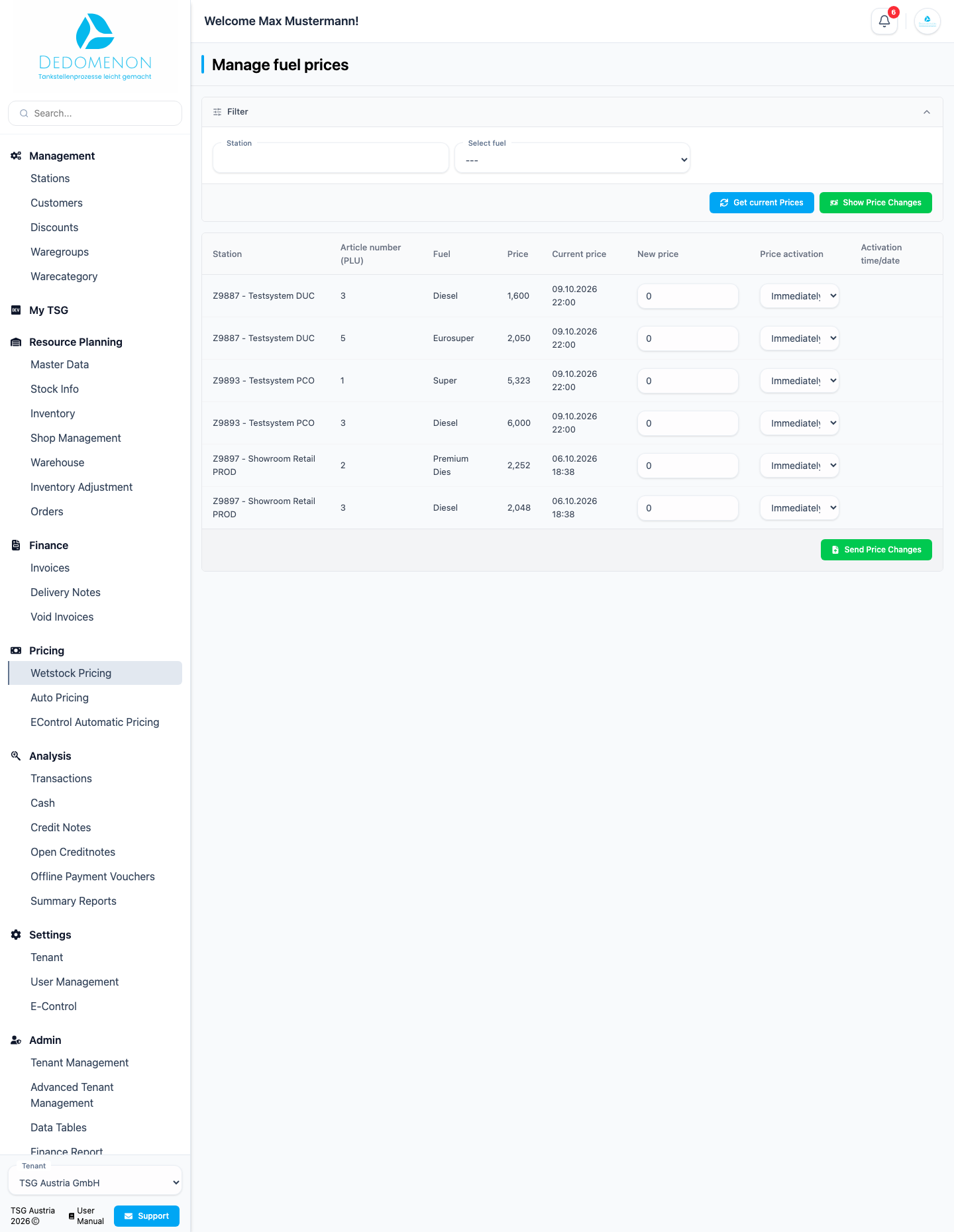
Viewing and filtering prices
The table shows every fuel of every station with its last known price. Stations for which no prices are available yet do not appear.
In the Filter area you narrow down the view:
| Field | Meaning |
|---|---|
| Station | shows only the fuels of the selected station |
| Select fuel | shows only the selected fuel (article number and name) |
The Get current Prices button requests the current prices from the selected station, or from all stations if none is selected. The table is then reloaded. A message tells you the result ("Prices are refreshed." or "An Error occurred while refreshing the Prices.").
When you change the filter or retrieve the prices again, the table is rebuilt. New prices you have already entered but not yet sent are lost.
Changing prices
The table has these columns:
| Column | Meaning |
|---|---|
| Station | Name of the station |
| Article number (PLU) | Article number of the fuel |
| Fuel | Name of the fuel |
| Price | currently valid price |
| Current price | date and time at which the price was taken over from the station |
| New price | input field for the new price (three decimal places) |
| Price activation | when the price applies: Immediately, End of day or Activation time |
| Activation time/date | appears only for Activation time: date and time from which the price applies |
To send new prices:
- If needed, select a station and a fuel in the filter.
- Enter the new prices in the New price column. Rows without a new price stay unchanged, as do rows with the value 0.
- Under Price activation choose when the price applies. For Activation time, also enter a date and time.
- Click Send Price Changes.
The price activation means:
| Choice | When the new price applies |
|---|---|
| Immediately | The change is sent to the station right away. |
| End of day | The change is sent at the end of the current day (time zone of the station). |
| Activation time | The change is sent at the time you specify. |
The changes are bundled per station. This page has no recurring price change; for regular adjustments see Auto Pricing.
Price tolerance
Before the prices of a station are sent, Dedomenon checks whether a change exceeds the price change tolerance (%) of that station. The percentage deviation from the current price is compared. A current price of 0 also triggers the prompt. If the tolerance is exceeded, the Price Tolerance Exceeded window opens that names the station and lists every affected fuel with its current price, new price, change in percent and tolerance. What happens next depends on the Pricing Mode of the station:
| Mode | Behavior |
|---|---|
| Warning (default) | You can end the transfer with Cancel or send the change anyway with Confirm. |
| Strict | A message asks you to adjust the affected prices first: "Please adjust the affected prices to proceed with the price change, the current pricing will be cancelled." The transfer is not carried out. Only Cancel is available. |
Tolerance (default 20 percent) and mode are set in the master data of the station (see Stations).
If the prompt concerns several stations, the stations are checked and sent one after the other. If you cancel at a later station, the stations sent before have already been ordered.
What happens after sending
Dedomenon sends the prices to the stations as a background task. The message "Price change successful" means that the tasks have been created, not that the station has already accepted the prices. You can follow progress and result on the Activities page (bell icon in the header, see Activities).
If the station cannot be reached when sending, the error message "Error in price change" appears, and the activities show a failed task with the advice to contact support.
If E-Control is set up (Settings → E-Control), Dedomenon automatically reports successfully transferred diesel and super prices of a station to E-Control (fuel price calculator). The E-Control page explains the credentials and the assignment of stations.
Price Change Journal
The Show Price Changes button opens the Price Change Journal. It lists the last 100 price changes of your company, newest first. Changes made by automatic pricing are included. The window reloads every 30 seconds (display Time remaining to update) and is closed with Close.
Each entry shows date, time, station and status of the change:
| Status | Meaning |
|---|---|
| In progress | The station has not yet confirmed the change. |
| Applied | The station has accepted the change. |
| Failed | The station rejected at least one price or the transfer failed. |
| Active | The change is marked as active. |
Clicking an entry shows the details: Name, Old price, New price, Activation (Immediately, At end of day or Activation time) and Status per fuel, with the error message of the station in case of errors, otherwise "OK".
If a change stays at In progress, open the journal again later or check the activities. For Failed, contact support.