Activities
Dedomenon runs some tasks in the background, for example transferring price changes to the stations, generating PDF files or synchronising data with the stations. Dedomenon keeps you informed about the progress and result of these tasks with messages. You find all messages on the Activities page.
Messages in the header
The bell icon at the top right of the header shows how many unread messages you have. The list refreshes itself every minute.
- Click the bell icon. The Messages list opens with the title and text of each message. Unread messages are marked with a dot.
- Click a message. It is marked as read and opened on the Activities page.
The arrow icon next to Messages opens the Activities page without selecting a message.
The Activities page
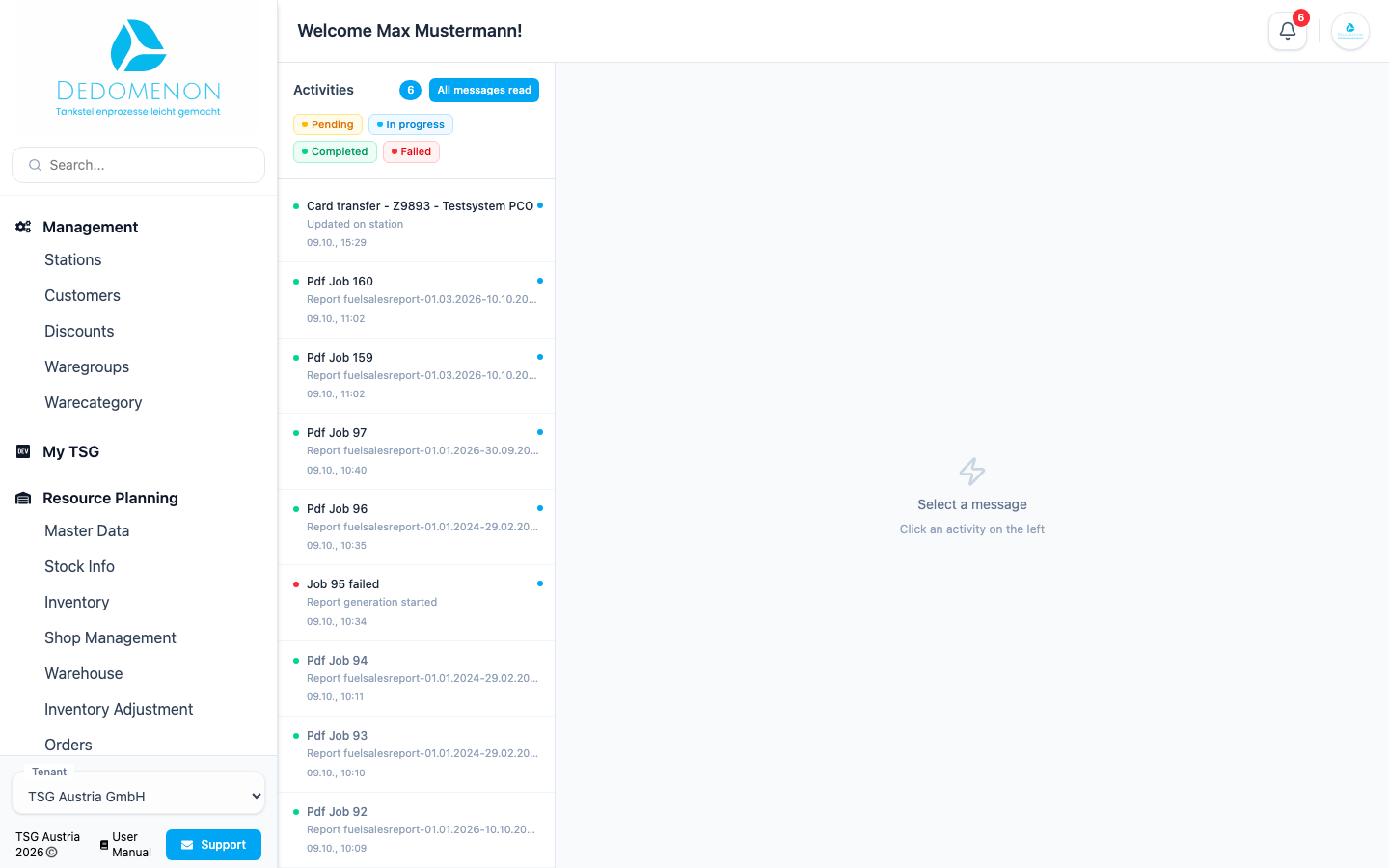
On the left you see all messages with title, text, date and time, the newest at the top. A coloured dot shows the status of the task. The status labels are:
| Status | Meaning |
|---|---|
| Pending | The task is waiting to be run |
| In progress | The task is running |
| Completed | The task finished successfully |
| Failed | The task failed |
Use the buttons above the list to show only messages with a certain status. You can select several statuses at once. Clicking a button again removes it from the selection.
If you have unread messages, All messages read marks all of them as read at once.
Message details
Click a message on the left to see its details on the right:
- status, title, date and time and the full text
- for failed tasks, the error message (Error message)
- under Files, the generated files such as PDFs. Click the download icon to download a file
- technical details such as Job ID and Read, which support needs for enquiries
Delete removes the open message.
The message is deleted immediately and without a confirmation prompt.
If a price change or a transfer to a station failed, the error message of the related message tells you why. Contact support with the Job ID if you cannot fix the error yourself.