Auto Pricing
Automatic pricing adjusts the diesel and super prices of a station on its own to the prices of competitors listed in the E-Control price database (fuel price calculator). On the Automatic Pricing page (sidebar: Pricing → Auto Pricing) you set this up per station: price limits, permitted weekdays and reference stations.
The page appears only if automatic pricing for Austria is enabled for your tenant. You also need the permission Auto Pricing, which the administrator of your company assigns under Settings → User Management (see User management).
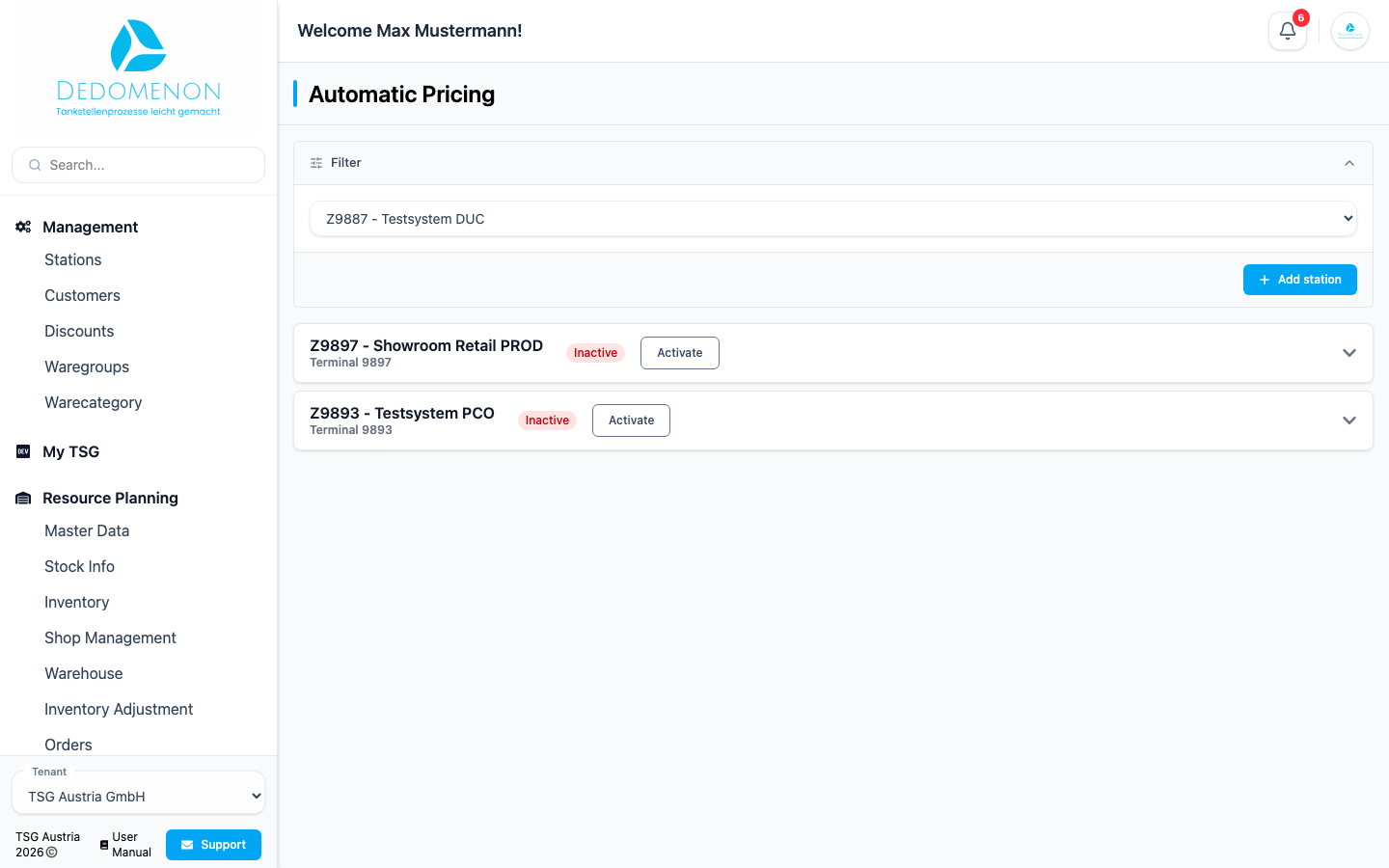
How automatic pricing works
As soon as you activate a station, Dedomenon checks every 10 minutes whether a price has to be changed. These rules apply:
| Rule | Meaning |
|---|---|
| Weekly calendar | For each weekday you decide whether prices may be raised and whether they may be lowered. If nothing is allowed for today, nothing happens. |
| Price increase | Only between 12:00 and 12:30 (time of the station), at most once a day. If the current price is below the Upper Price Limit, it is raised to the Upper Price Limit. |
| Price decrease | Only outside this time window. The price is lowered to the lowest price of the active reference stations, but not below the Lower Price Limit. If the current price is already at or below that level, it stays unchanged. |
| Lower Price Limit 0 | With a Lower Price Limit of 0, this fuel is not lowered. |
| No reference price | If there is no reference price for a fuel, it is not lowered. |
The prices are sent directly to the station and appear in the Price Change Journal (see Wetstock Pricing). Automatic changes do not create messages under Activities. If E-Control is set up (Settings → E-Control), Dedomenon automatically reports successfully transferred diesel and super prices of a station to E-Control. The E-Control page explains the credentials and the assignment of stations.
On the EControl Automatic Pricing page you also choose a pricing mode. The rules described here apply to the modes Fixed price and Per article. In the mode Linked to reference, the diesel and super settings of this page are ignored; the calendar still applies.
Adding a station
Above the station area there is a selection field with all stations for which automatic pricing has not been set up yet (it is missing if all stations are set up).
- Select the station.
- Click Add station.
The station appears as a collapsed entry with the station name and terminal number. It is Inactive at first.
Activating or deactivating a station
Each entry shows the state Active or Inactive on the right and a button Activate or Deactivate. There is no confirmation prompt. Activate starts the regular check every 10 minutes, Deactivate ends it.
General settings
Click the entry of a station to open it.
| Field | Meaning |
|---|---|
| Diesel PLU | Article that is priced as diesel |
| Lower Price Limit (diesel) | Price below which diesel is not lowered (in euros, three decimal places) |
| Upper Price Limit (diesel) | Price to which diesel is raised at noon |
| Truck Pricing Active? | Switches truck pricing on. Next to the Truck Diesel PLU field it says Active or Inactive. |
| Truck Diesel PLU | Article for truck diesel. With truck pricing active, it receives the same price changes as diesel. |
| Super PLU | Article that is priced as super |
| Lower Price Limit (super) | Price below which super is not lowered |
| Upper Price Limit (super) | Price to which super is raised at noon |
The articles are offered with article number and name. Click Save at the end of the form. "Changes saved!" appears afterwards, or "Error while saving!" if something went wrong.
Calendar Settings
In the Calendar Settings area (opens automatically as soon as a day is enabled) there are two checkboxes for each weekday. The weekdays are Monday to Sunday.
| Checkbox | Meaning |
|---|---|
| Price increase allowed? | On this day the price is raised to the Upper Price Limit at noon. |
| Price reduction allowed? | On this day the prices are adjusted to the reference stations. |
If neither is set for a day, automatic pricing changes nothing on that day. Save with the button at the end of the form.
Reference stations
Below the settings you find the table of reference stations, that is, the competitors whose prices your station follows.
| Column | Meaning |
|---|---|
| Active | Only active reference stations are used for pricing |
| Name | Name of the competitor station |
| Latitude, Longitude | Position of the station (latitude, longitude) |
| Diesel, Super 95 | last known prices |
| Last update | time of the last price query |
The table is sorted by diesel price (cheapest first, stations without a price last). Below the table there are three buttons:
| Button | Effect |
|---|---|
| Update | Requests the current diesel and super prices of all listed reference stations from E-Control and saves them. |
| Reset | Replaces the whole list with the E-Control stations in the immediate surroundings of your station (based on its coordinates). All stations are inactive afterwards. Beforehand, the prompt "This process will reset your data. Are you sure you want to make these changes?" appears. |
| Save | Saves the checkmarks under Active. |
- For a new station, click Reset to load nearby competitors.
- Tick Active for the stations you want to follow.
- Click Save.
Reset discards your previous selection of reference stations. You have to activate and save the stations you want again. For Reset, the station needs stored coordinates (see Stations).
Without an active reference station, no price is lowered. Price increases at noon are not affected.