Inventory Adjustment
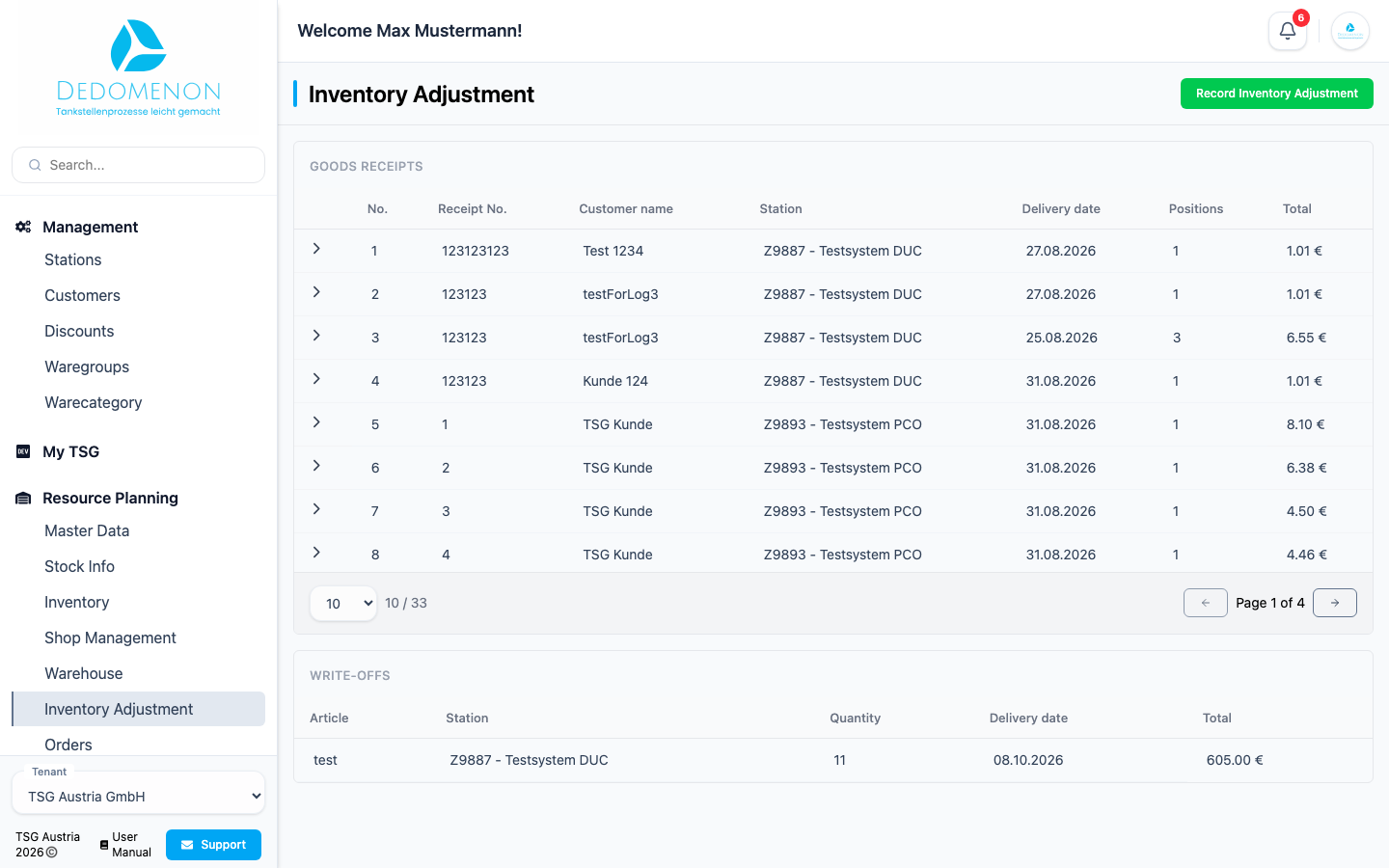
On the Inventory Adjustment page (sidebar: Resource Planning → Inventory Adjustment) you record changes to a station's stock: goods receipts (delivered goods according to the delivery note) and write-offs (goods that are booked out). Below, you see all goods receipts and write-offs recorded so far.
The menu item only appears if merchandise management is enabled for your tenant, and you need the Inventory Adjustment permission (see User management).
Recording a goods receipt
- Click Record Inventory Adjustment at the top right. The entry area opens above the tables.
- In the Type field, choose Goods Receipt (preselected).
- In the Deliverynote Information section, choose the Station and the Customer (supplier; shown as number and name).
- Enter the Delivery Note Number (required), the date in the Inventory Date field (this date is kept as the delivery date) and optionally a Note.
- In the Articles section, add the delivered items (see below).
- Click Save. The entry area closes and the goods receipt appears in the table.
Cancel or Close discards your input.
Items of a goods receipt
Each item is one row with these fields:
| Field | Meaning |
|---|---|
| Select Article | Article (shown as PLU and name). Active articles with stock management switched on in the master data can be chosen. |
| Quantity | Delivered quantity (required, not negative, decimals possible) |
| Purchase Price | Net purchase price per unit (required). After you choose the article it is prefilled from the master data and can be adjusted. |
| VAT % | VAT rate in percent (required). It is prefilled from your country's tax rates after you choose the article. |
| Total | Gross row total (quantity times purchase price, plus VAT), calculated automatically |
Add adds another row, the trash icon (Remove) deletes a row; the last remaining row cannot be removed. The grand total is shown below the items.
Importing items from a CSV file
Import lets you choose a CSV file. Each line contains, separated by semicolons, PLU; quantity; purchase price; VAT rate. The existing rows in the form are replaced. Lines whose PLU does not match an active article with stock management are skipped. If the article has a purchase price in the master data, that price is used, and so is the tax rate from the master data if it can be found.
Check the rows after the import. The file is read line by line using the four columns above; other columns are ignored.
Recording a write-off
- Click Record Inventory Adjustment.
- In the Type field, choose Write-off.
- In the Write-off Info section, choose the Station.
- In the Articles section, choose an article and enter Quantity (at least 0.01) and Purchase Price.
- Click Save.
A write-off concerns exactly one article. Delivery note, customer, date, note and VAT rate do not apply. The VAT code is taken from the article.
Saving a goods receipt increases and saving a write-off decreases the stock of the articles at that station immediately, and the change is transmitted to the station right away. If an article had no stock yet, the booked quantity becomes its stock.
Recorded goods receipts
The Goods Receipts table lists all goods receipts (across all stations) and can be sorted by No..
| Column | Meaning |
|---|---|
| No. | Running number of the goods receipt |
| Receipt No. | Delivery note number |
| Customer name | Supplier |
| Station | Station of the goods receipt |
| Delivery date | Date of delivery |
| Positions | Number of items |
| Total | Gross total in euros |
The arrow at the start of a row expands the details: the Note and, for each item, Article, Quantity, Purchase price (net), VAT and Total.
Recorded write-offs
The Write-offs table shows Article, Station, Quantity, the date of recording (column Delivery date) and the Total (quantity times purchase price, without VAT).
This page offers no way to change or delete recorded goods receipts or write-offs. The booking cannot be undone in the app; correct a mistake with an opposite booking (a write-off for a wrong goods receipt and vice versa). Check your input before saving. If an error occurs while saving, the entry area stays open and no error message is shown.