Summary reports
On the Summary Reports page (sidebar: Analysis → Summary Reports) you create reports for any period you choose, optionally for one station. The result appears as a PDF directly below the filter. You can also export the data as a CSV file. You need the Summary Reports permission (see User management).
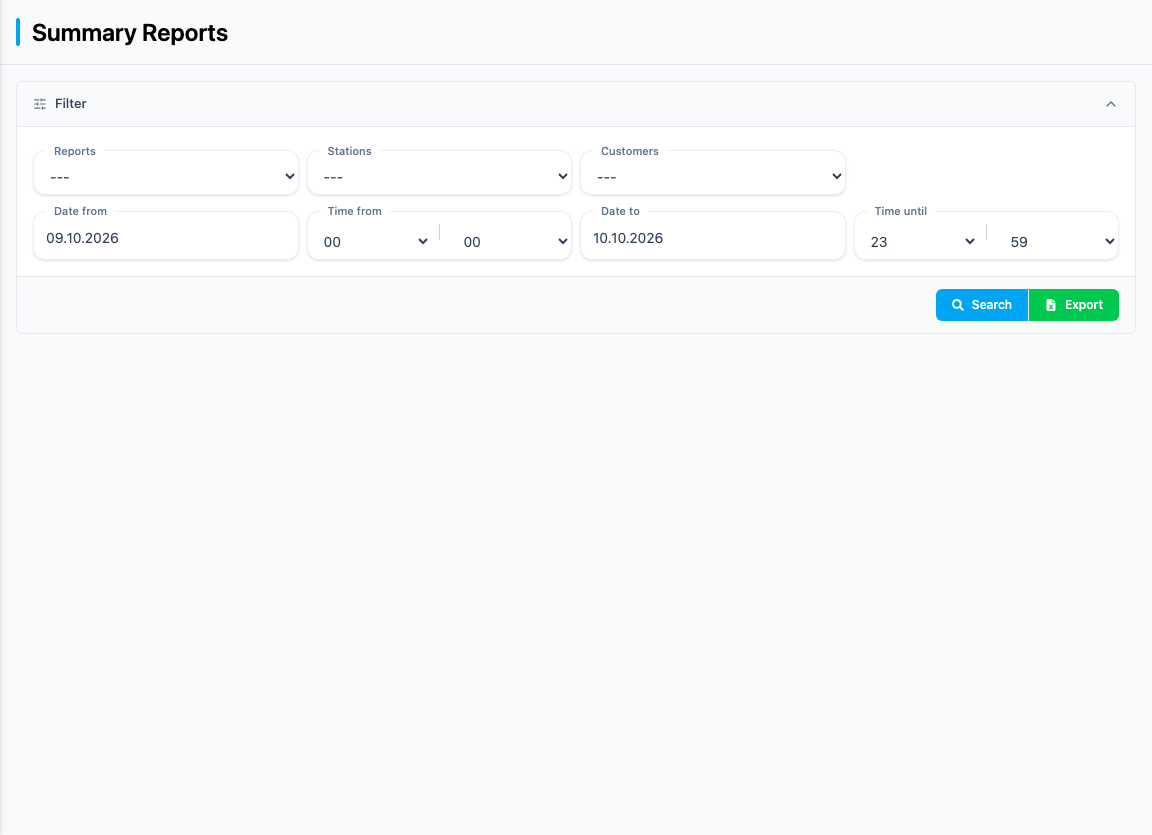
Create a report
- Select the report type under Reports.
- Select a station under Stations (displayed as terminal ID and name).
- If the Customers field is displayed, select a customer (displayed as number and name).
- Set Date from, Time from, Date to and Time until.
- Click Search.
The defaults are today from 00:00 until the following day at 23:59. All fields are optional. The times are evaluated in the Europe/Vienna time zone. Your selection is kept in the address bar, so you can share the link.
The report is created as a background task (see Activities). While it is being created, the page shows a placeholder. As soon as it is ready, the PDF appears below the filter.
Report types
| Report type | Meaning |
|---|---|
| Sales report | Sales report for the period |
| Fuel level report | Report on tank fill levels |
| Price changes | Report on price changes |
| Select Deliverynote | Delivery note report |
| Empty circuit report | Report on empty circuits |
| Fuel Sales | Fuel sales report |
Export as a CSV file
The Export button creates a CSV file with the selected filter values (station and period).
- For all report types except the Sales report, Export downloads the file directly. Its name corresponds to the report type.
- For the Sales report, Export opens a selection: By article, By payment type or By payment type (fuel). Each entry downloads its own CSV file.
The customer only affects the PDF report created via Search, not the CSV export.