Inventory
With Inventory you record the actual stock of your articles at a station and book the differences against the system stock. An inventory goes through several statuses, from preparation to booking.
You need the Inventory permission. Your company's administrator assigns permissions in User Management.
Process overview
| Status | Display | What is possible? |
|---|---|---|
| Created | Created (in the list: Open) | Select articles, download the count list, start the inventory |
| In progress | In Progress (in the list: Open) | Count and save stock, confirm the inventory |
| Counted | Counted | Check the result, download the count list, book the inventory |
| Booked | Booked | View only, download the final report |
Inventory list
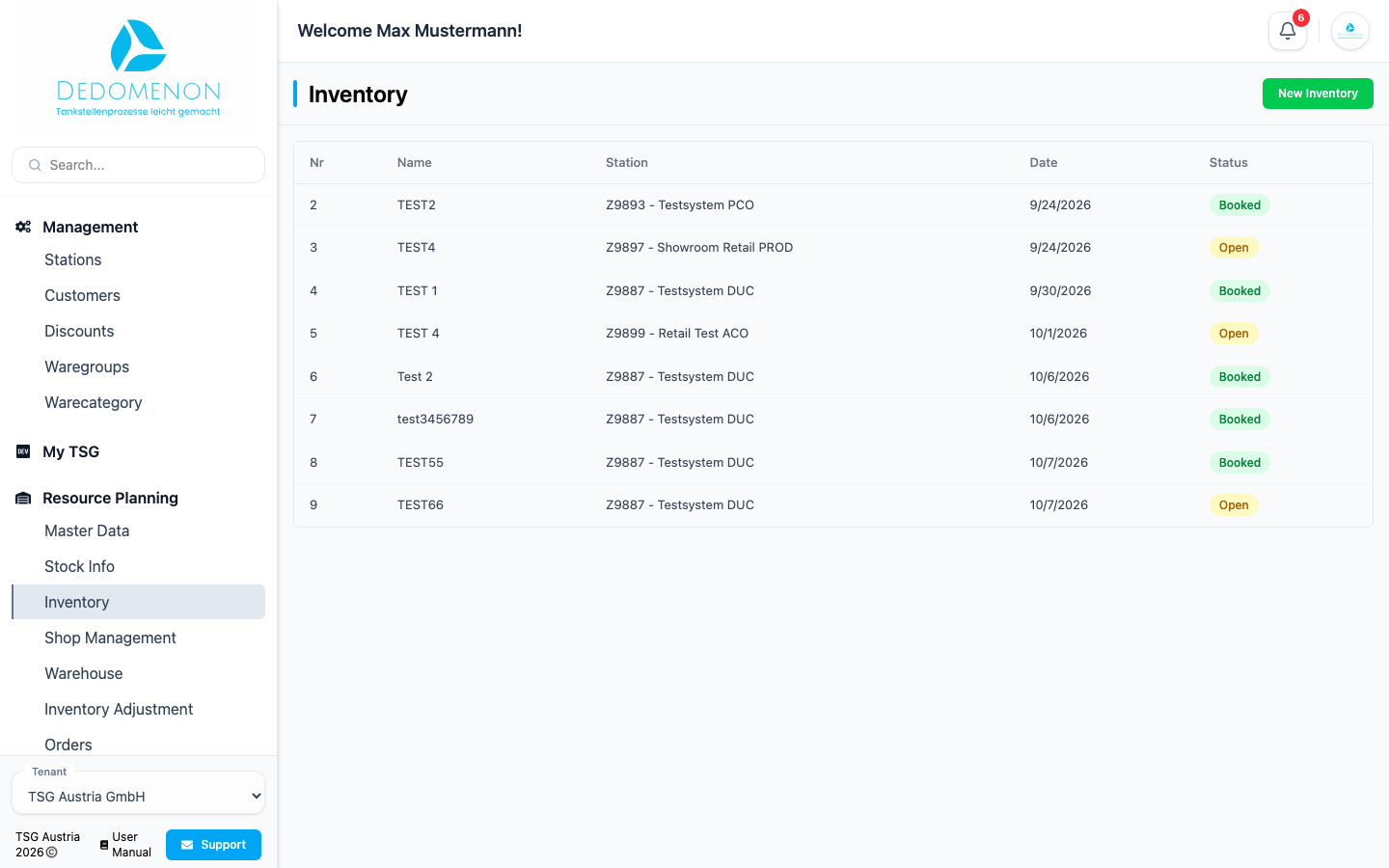
The Inventory page (sidebar: Resource Planning → Inventory) lists all inventories with Nr, Name, Station, Date and Status. Click a row to open the detail page of the inventory. If there is no inventory yet, the message "No inventories available" appears.
Create a new inventory
- Click New Inventory at the top right.
- In the Start New Inventory dialog, choose the Station you want to count.
- Check the Inventory Date. Today's date is preselected. This date is later used as the booking date of the stock changes.
- Optionally enter a Name.
- Click Start Inventory. It is not active until a station is selected.
The inventory is created in the status Created and appears in the list. It does not contain any articles yet. Cancel closes the dialog without creating anything.
Detail page
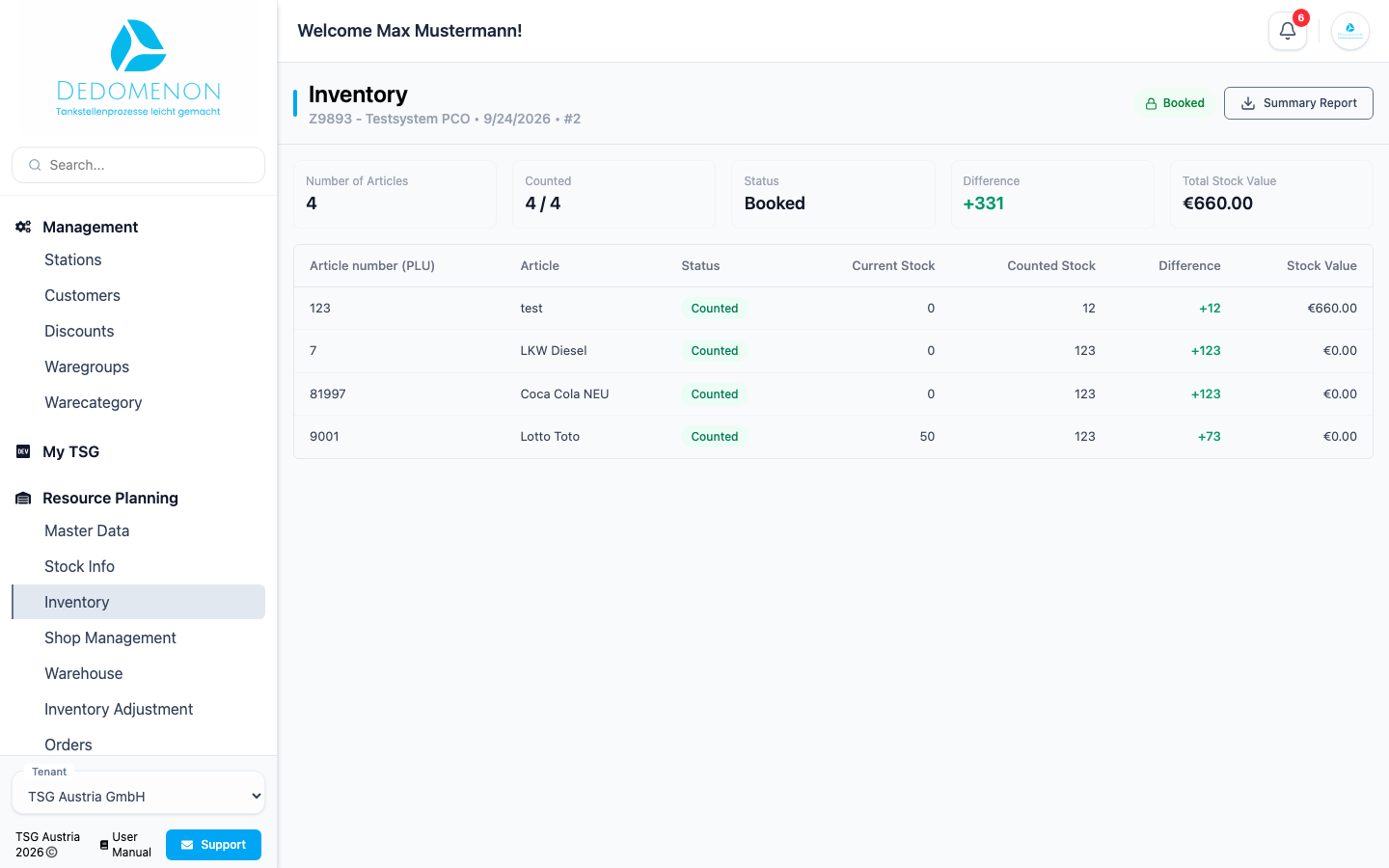
The header of the detail page shows station, date and inventory number as well as the current status. The key figures below:
| Key figure | Meaning |
|---|---|
| Number of Articles | Number of articles in the inventory |
| Counted | Counted articles out of all articles |
| Status | Current status |
| Difference | Sum of the differences between counted stock and stock at the start (counted articles only) |
| Total Stock Value | Counted stock times the purchase price of the article, summed over all counted articles (in euros) |
The table shows for each article the Article number (PLU), Article, Status (Counted or Not counted), Current Stock, Counted Stock, Difference and Stock Value. Articles not counted yet show a dash. The current stock is the stock of the station at the time the article was added to the inventory.
Select articles
As long as the inventory is in the status Created, you can define its articles:
- Use Select Articles to choose individual articles (shown as PLU and name). Deselecting an article removes it again. Changes apply immediately; there is no need to save.
- Alternatively, choose a ware group under Add Product Group and click Add. All articles of this group that are not yet in the inventory are added. Only ware groups with at least one assigned article are offered.
- Optionally, use Count List to download a list for printing or counting, as PDF or CSV.
Once the inventory has been started, the articles can no longer be changed.
Count
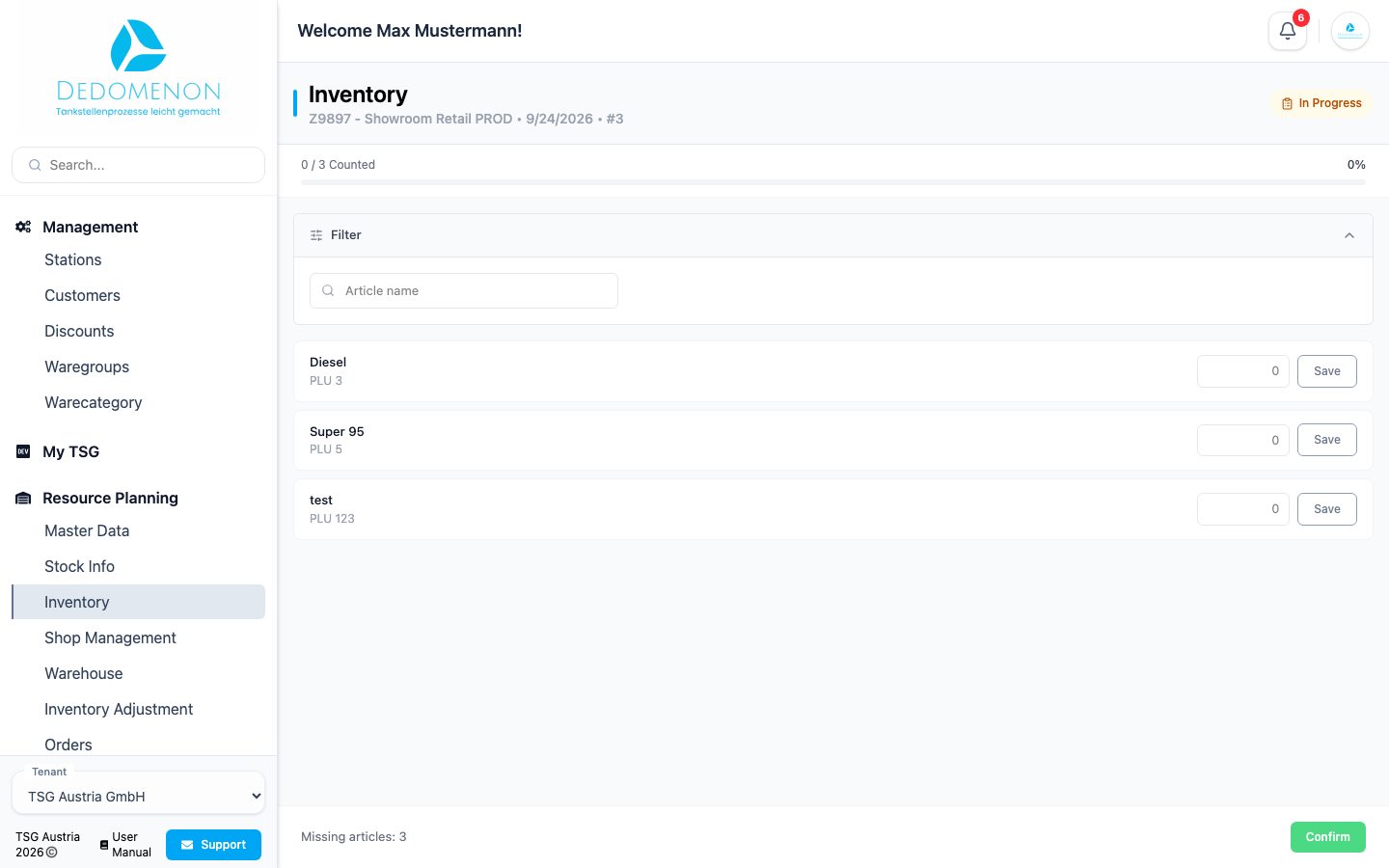
- Click Start Inventory. It is only active once the inventory contains at least one article. The inventory changes to the status In Progress.
- For each article, enter the counted stock and click Save. The button is only active once you have entered a value. Saved articles are marked with a check mark. You can overwrite saved values again.
- Use the search field Article name (search by name or PLU) to find an article quickly.
- The bar at the top shows how many articles have already been counted (number, Counted and percent).
- At the bottom, you see how many articles are still missing ("Missing articles: <number>"). As soon as all articles are counted ("All articles counted, ready to book"), click Confirm. The inventory changes to the status Counted, and you return to the detail page.
If you interrupt counting, the detail page offers Continue Inventory, which opens the counting page again.
Confirming has no confirmation prompt. A confirmed inventory cannot be counted again; the counting page then redirects to the detail page.
Check the result and book
In the status Counted, check the difference and stock value per article on the detail page. Book Inventory completes it.
When booking, the following happens:
- For every article with a difference, a stock movement of the type inventory is created with the inventory date (visible on the article card), and the stock of the station is adjusted accordingly.
- The counted stock is transferred to the station.
- The inventory receives the status Booked and you return to the inventory list.
Booking has no confirmation prompt and cannot be undone. Check the figures before booking.
For a booked inventory, Summary Report is available instead of the count list, which downloads the report as a PDF.
If an action fails, a message appears saying "A malfunction occurred." or showing the error text of the system. Check the status of the inventory and try again.
For other ways to correct stock, see Inventory Adjustment.