Warehouse
The Warehouse page (sidebar: Resource Planning → Warehouse) shows the current stock of every article for one station, together with its minimum and maximum stock.
The Warehouse menu item only appears if merchandise management is enabled for your tenant, and you need the Warehouse permission (see User management).
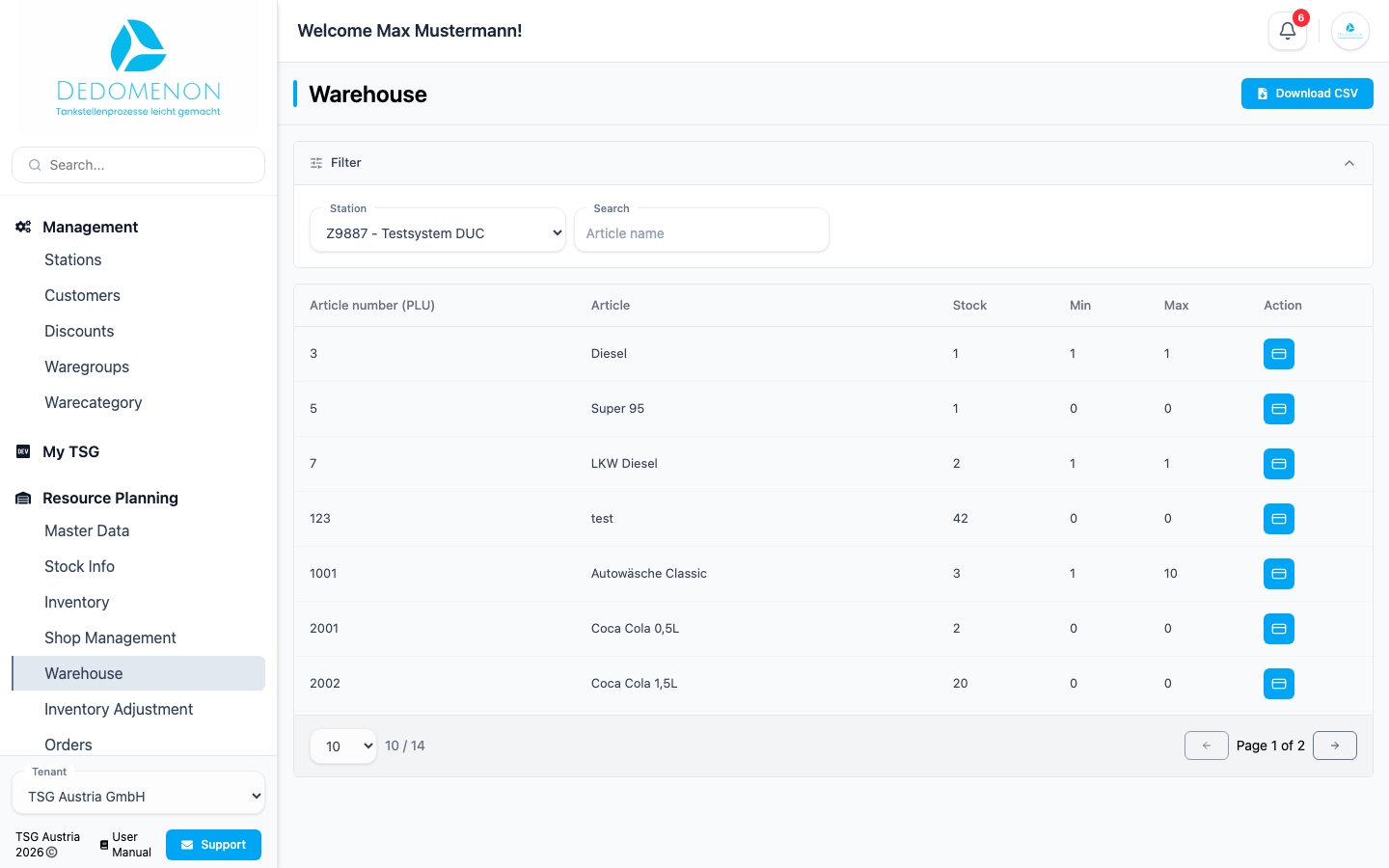
Viewing stock
- Choose the station under Station. When the page opens, the first station in the list is preselected.
- Optionally enter part of the article name in the Search field (placeholder: “Article name”). The table then only shows matching articles.
- Use the paging controls below the table to set how many entries are shown per page.
| Column | Meaning |
|---|---|
| Article number (PLU) | PLU of the article (the table is sorted by PLU in ascending order) |
| Article | Name of the article |
| Stock | Current stock |
| Min | Minimum stock |
| Max | Maximum stock |
| Action | Card icon: opens the article's card in the master data |
For a more detailed stock overview with tanks and reports, see Stock Info.
Downloading stock as CSV
Click Download CSV at the top right. The file stocks.csv is created with all stock entries of the
selected station. A search term does not affect the download. If there are no entries, nothing happens.
Each line of the file (separated by semicolons) contains plu, name, purchasePrice, currentStock, minStock and maxStock – that is PLU, article name, purchase price, current stock, minimum stock and maximum stock.
You do not change stock on this page. Record goods receipts and write-offs under Inventory Adjustment and stock counts under Inventory.